

Comments on boards
Comments on boards are how you discuss what’s on the canvas without changing it. Drop a thread on a specific node, or anywhere on empty canvas. Mention a collaborator and they’ll get a notification. React with an emoji. Attach an image. Replies sync across everyone viewing the board in real time.
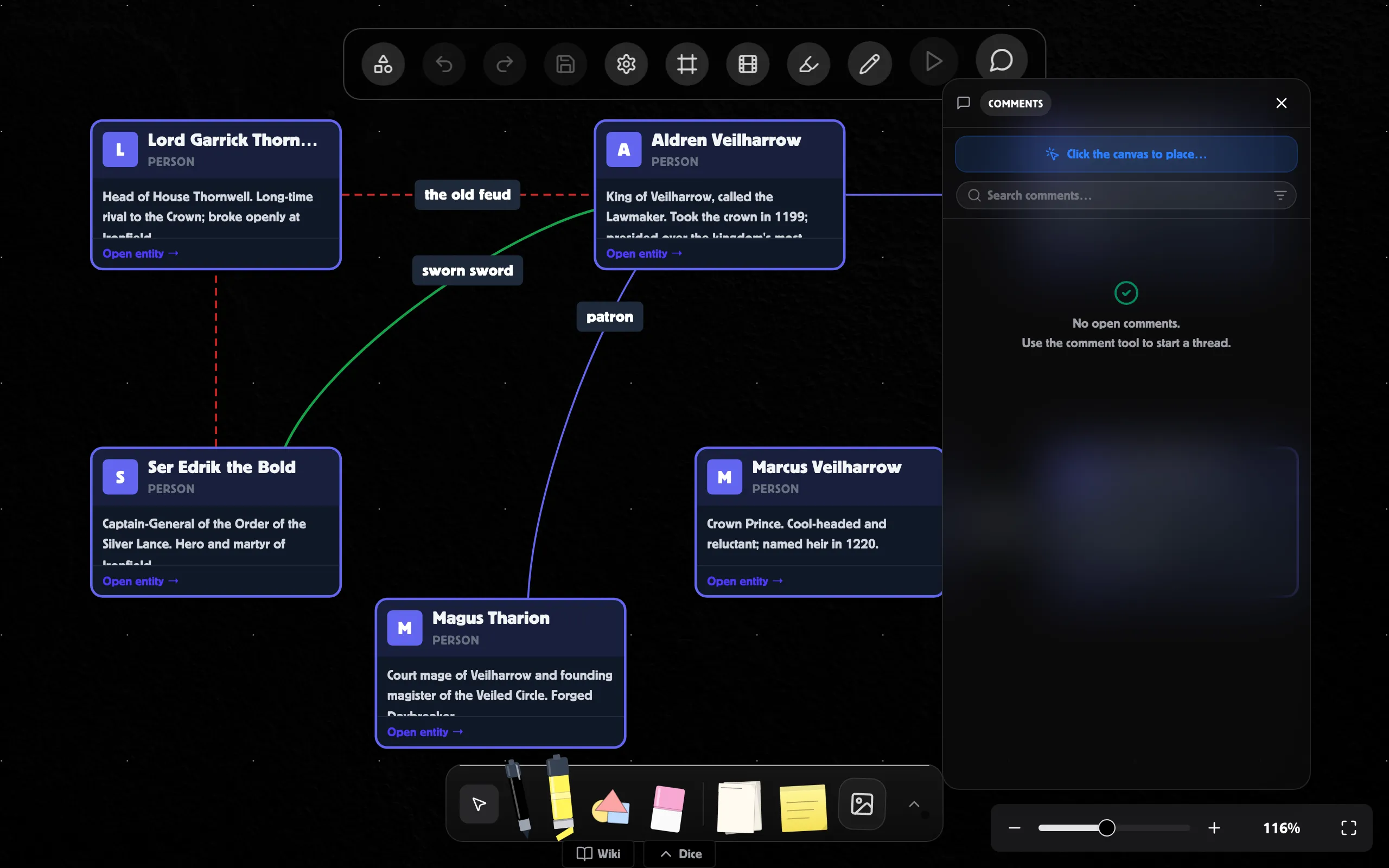
Posting your first comment
Section titled “Posting your first comment”- Click the Comments button in the toolbar to enter comment mode. The side panel opens and a crosshair appears on the canvas.
- Click where you want the thread — on a node to anchor it there (it follows the node as it moves), on an edge to pin it to that connection (the marker rides the edge’s midpoint and tracks it), or on empty canvas for a fixed point.
- Write your comment in the popover that appears, then hit Post (or press Enter — Shift+Enter for a new line).
A coloured marker drops where you posted. Click it any time to reopen the thread.
Reading and replying
Section titled “Reading and replying”There are two ways to read comments:
- Markers on the canvas — every thread shows up as a small badge at its anchor point. Amber means open, green means resolved, blue means there’s new activity since you last looked. Click to open a popover.
- The Comments panel on the right — a scrollable list of every thread on the board. Search by text or author name, and use the filter icon (funnel) to switch between Open / All / @me or to filter by a specific author (anyone who started or replied in a thread). Mark all read clears the unread dots for everything in the current view.
Open a thread → type your reply → Enter to send. Replies thread under the parent.
Mentions
Section titled “Mentions”Type @ in any comment to bring up the autocomplete. It lists everyone
who has access to the board (board owner, direct shares, and anyone shared
on the board’s parent world). Pick a name and they’ll be tagged as a real
mention.
When you post:
- The mentioned person gets a notification with a link straight to the comment.
- Clicking the notification opens the board with the right thread already in focus and the canvas centred on the comment.
Reactions
Section titled “Reactions”Hover any comment in a thread and click the smile-plus icon next to the edit / delete buttons. Pick a quick emoji — 👍 ❤️ ✅ 😄 ❓ 👀 — to leave a reaction without typing a reply, or hit More… for the full emoji picker.
If a comment already has reactions, they show up as small chips below the comment body. Click your own chip to take it back; click someone else’s to add yours.
Attachments
Section titled “Attachments”Comments support image and file attachments. The composer toolbar has two buttons:
- 🖼 Choose from library — picks an asset you’ve already uploaded.
- 📎 Upload from device — uploads a new file (and adds it to your library so you can re-use it later).
Up to 5 attachments per comment, 8 MB each.
Viewing an image attachment
Section titled “Viewing an image attachment”Click an image thumbnail and it opens inline in the comments panel. Hover the thumbnail to reveal a small toolbar:
- Open here — expands the image inline (this is also the default click action).
- Open fullscreen — opens a darkened fullscreen lightbox. Esc dismisses.
Resolving threads
Section titled “Resolving threads”Done with a thread? Click the circle icon in the thread header to mark it resolved — the marker turns green and the thread stops counting toward the unresolved badge on the toolbar. Click again to re-open.
Reader vs Editor
Section titled “Reader vs Editor”Anyone with board access can comment, including readers (viewers). The difference is just the badge:
- Readers get a small “Reader” pill next to their username on every comment they post — useful when you’re scanning a thread and want to know whether feedback is coming from a structural editor or a viewer.
- Editors can also still comment normally; the pill just doesn’t appear.
Inside any thread you can filter the replies to just editors or just readers using the small chip row above the thread body.
Watching a thread
Section titled “Watching a thread”By default you’re notified about a thread only when someone @mentions you. The bell icon in a thread’s header changes that:
- 🔔 Watch — get notified on every reply, even without a mention.
- 🔕 Mute — never notified, even if you’re mentioned.
- Click again to return to the default.
Starting a thread — or replying to one — automatically watches it, unless you’ve explicitly muted it.
Turning a comment into a task
Section titled “Turning a comment into a task”Board owners and editors can promote any comment into a tracked task. Hover the comment and click the checklist icon (“Convert to task”). A task chip appears on the comment with:
- a checkbox to flip it open ⇄ done,
- an assignee picker (any board member),
- a remove button to demote it back to a plain comment.
The assignee can tick their own task done even without edit access.
Edit history
Section titled “Edit history”Edited a comment? An italic edited label shows in its header. Click it to open the history — the current version on top, each earlier version below it with the time it was replaced.
Rich text, images & drafts
Section titled “Rich text, images & drafts”The composer supports bold, italic, strikethrough, links, bullet
and numbered lists, and code blocks — toolbar buttons sit above the send
button. You can also paste or drag an image straight into the composer to
attach it (the same as the paperclip).
Live updates
Section titled “Live updates”Comments and reactions sync across everyone with the board open. Posts, edits, deletes, and reactions all appear without a refresh. Threads with new activity since you last looked get a blue dot in the panel and a soft pulse on their canvas marker.
Linking to a thread
Section titled “Linking to a thread”Open any thread and click the link icon in its header — your clipboard now has a URL that opens the board with that exact thread focused (and centres the canvas on it). Handy for pasting into a chat message or another comment.