

Atmospherics
Atmospherics drift a layer of weather and mood across your whole World Map — clouds rolling over the coast, snow settling on the mountains, smoke over a burning city. It sits above the map without touching your pins, paths, or regions.
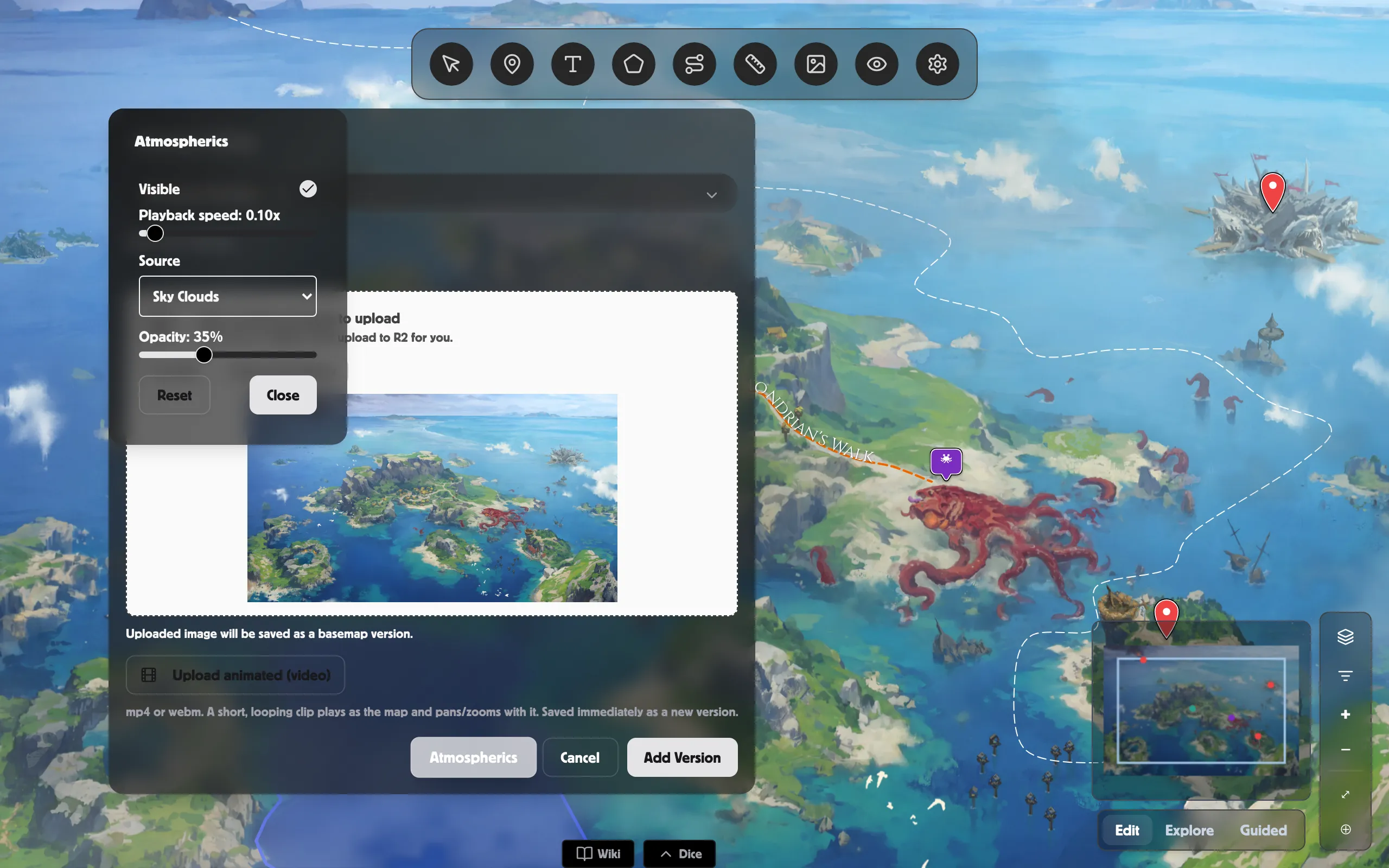
Open Atmospherics
Section titled “Open Atmospherics”Open the Basemap settings panel and click Atmospherics to bring up the controls.
Choose and tune the effect
Section titled “Choose and tune the effect”-
Make sure Visible is ticked so the effect shows on the map.
-
Pick a Source — Sky Clouds, Snow, Rain Drizzle, Rain Heavy, Rain Storm, or Smoke.
-
Set Playback speed — how fast the effect drifts (slower feels calmer, faster feels stormier).
-
Set Opacity — how strong the effect looks, from a faint haze to a heavy overlay.
Your choices are remembered, so the mood is there again next time you open the map.
Turn it off or start over
Section titled “Turn it off or start over”- Untick Visible to hide the effect without losing your settings.
- Click Reset to return the speed and strength to their defaults.
- Click Close when you’re happy.
Related
Section titled “Related”- Basemaps — where the Atmospherics button lives.
- Image overlays — place a single drifting image instead.
- World maps — everything you can add to an overland map.