

Basemaps & versions
Every World Map scene sits on a basemap — the picture the whole map is drawn over. You can keep several versions of that picture and switch between them, including an animated one.
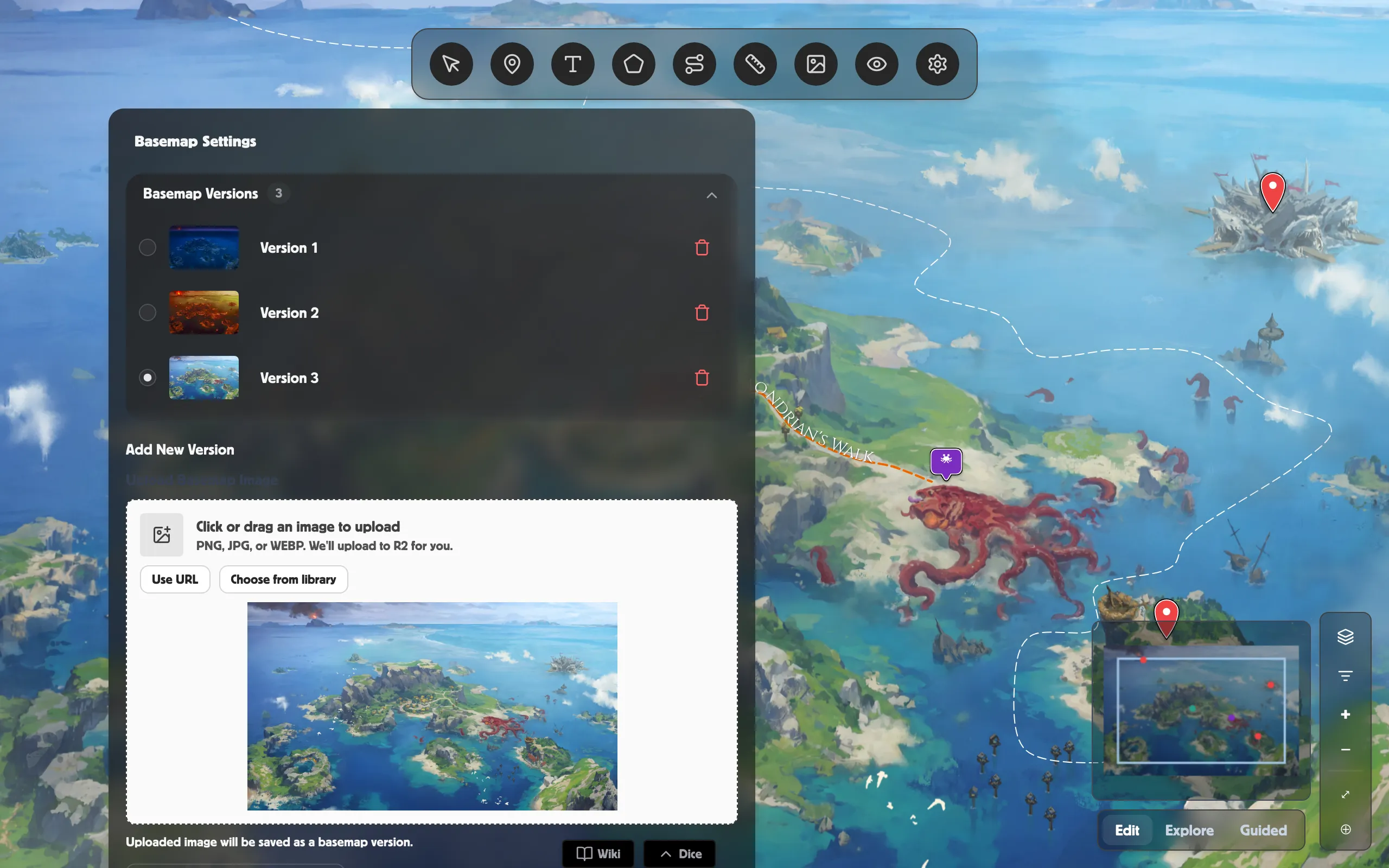
Open Basemap Settings
Section titled “Open Basemap Settings”-
Open your World Map scene.
-
Click Settings (the gear button) in the toolbar.
-
The Basemap Settings panel opens.
Versions are your map’s variants
Section titled “Versions are your map’s variants”Under Basemap Versions you’ll see every version you’ve saved, each with a thumbnail. Select one to make it the map that’s showing. (A version with no picture yet reads No preview.)
To add one:
-
Under Add New Version, click Upload Basemap Image and choose your picture.
-
Click Add Version — it’s saved and joins the list.
To remove a version, click the trash button next to it.
Add an animated basemap
Section titled “Add an animated basemap”Want a living map — drifting clouds, a rolling tide? Upload a short video.
-
In Add New Version, click Upload animated (video).
-
Choose an mp4 or webm file (keep it under 100 MB).
A short, looping clip plays as the map and pans and zooms right along with it. It’s saved straight away as a new version, marked with a small film icon. Its first frame is captured as a still — used for the thumbnail, and shown to anyone who’s turned off motion.
Swap the map as the years pass
Section titled “Swap the map as the years pass”Each version has an Active from year box. Fill it in and that version takes over from that year onward as you move the timeline — perfect for a kingdom that grows, burns, or floods across the ages. Leave it blank (any) and the version is always available. See Time & history.
The panel also has an Atmospherics button for weather and lighting over the map.
Related
Section titled “Related”- Time & history — swap the map as the years turn.
- Atmospherics — weather and lighting over the map.
- Generate a map with the Map Foundry — make a basemap from scratch.
- Navigating & the mini map — move around your map.