

Pins & markers
On a World Map scene, pins mark the places that matter — cities, dungeons, camps, and every point of interest in between. Drop one anywhere, dress it up, and tie it to the rest of your world.
Locations render as beacons: a thin line of light rising from the exact point they mark. At rest they stay quiet so your map art keeps the stage. As your cursor approaches one it brightens, and hovering it sends a pulse across the map and reveals the location’s name above the light.
Drop a pin
Section titled “Drop a pin”-
Open a World Map scene and pick the Pin tool from the toolbar.
-
Click anywhere on the map to drop a pin.
-
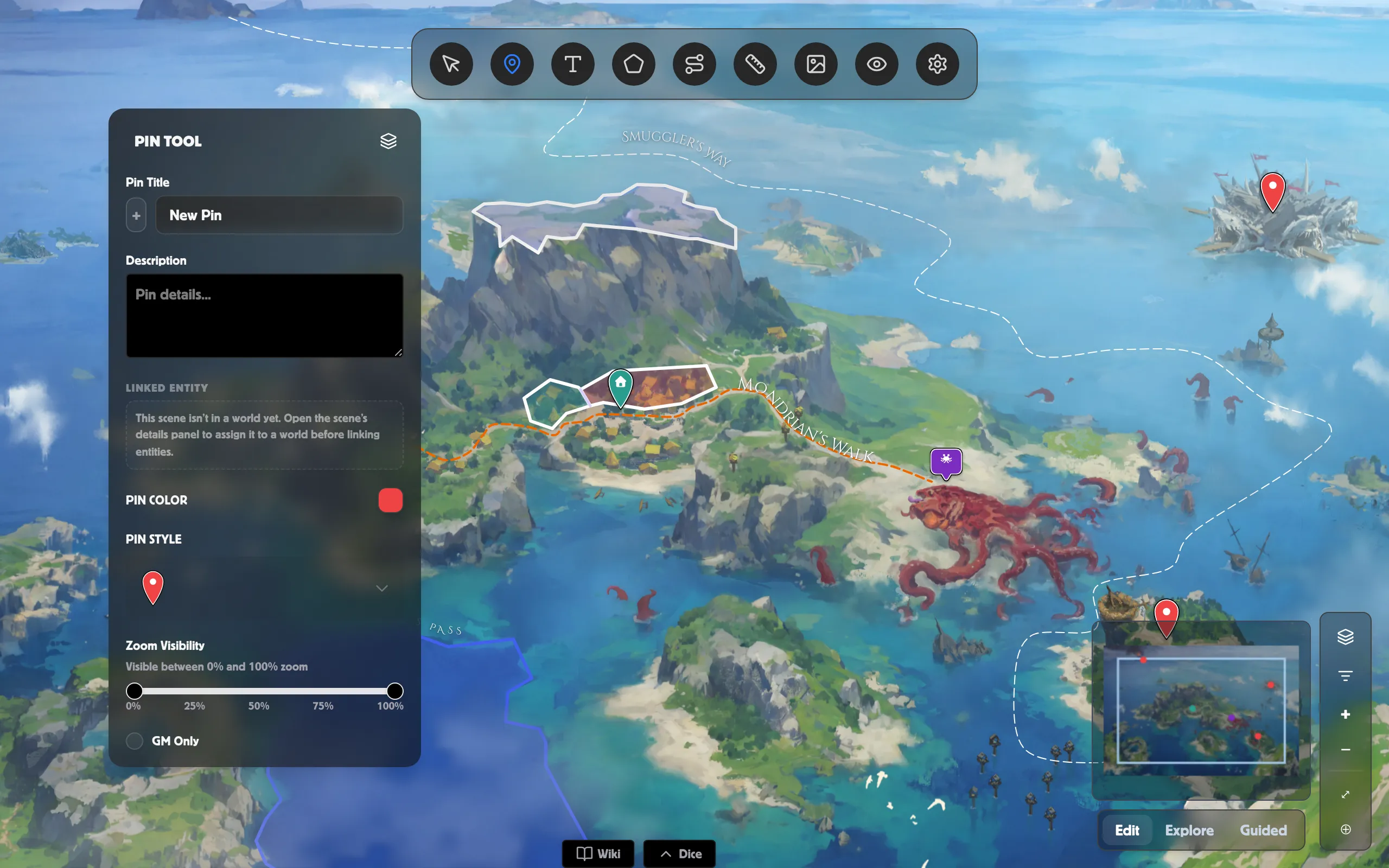
Give it a Pin Title and a Description in the Pin Tool panel.
Choose an icon or your own art
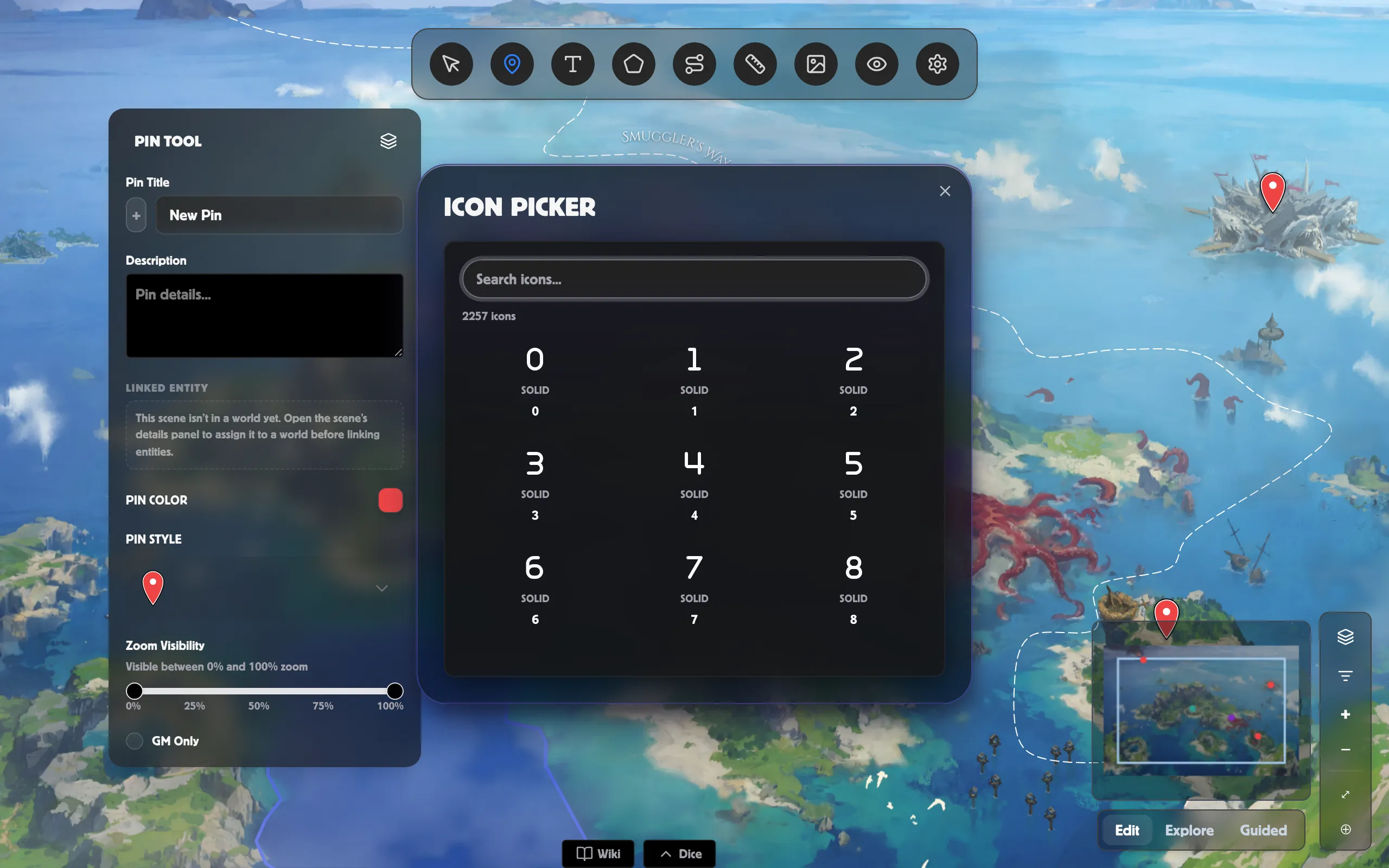
Section titled “Choose an icon or your own art”- For a symbol, click the icon button beside the Pin Title and pick one from the icon picker: suggested place icons first, or search by name for thousands more. Pin icons are tinted to the pin’s colour, so the picker offers single-colour icons here.
- For your own art instead, open Pin Style and upload a Marker image (optional) under Image Marker. Remove Image goes back to the icon.
Icons and art are only shown while a location is awake — hovered, selected, or with your cursor nearby. That’s deliberate: it’s what keeps a map of fifty locations from becoming a wall of icons.
Colour and size
Section titled “Colour and size”- Pin Color tints the beacon’s light — the quickest way to tell your factions, ruins, and settlements apart at a glance.
- Open Pin Style for Size (Small or Large), which sets how tall the beacon stands.
Beacons keep the same size on screen however far you zoom, but they show more of themselves as you zoom in: a glimmer across the whole continent, the full beacon up close.
Pick a style to suit your world
Section titled “Pick a style to suit your world”Open Pin Style and choose a Style. Each one is a different kind of marker, not just a different colour:
- Beacon — a clean shaft of light. The default.
- Arcane — a sigil turning above the ground. Fantasy.
- Eldritch — a torn rift, guttering. Horror.
- Holo — a scanner footprint on the ground. Sci-fi.
- Relic — a standing stone with a lit inlay. Ancient ruins.
They all behave identically — they light up as your cursor nears them, wake on hover, and reveal their name the same way — so you can mix them on one map, or give a whole world a single look, without anything becoming harder to use.
Control when a pin appears
Section titled “Control when a pin appears”- Zoom Visibility — drag the slider so a pin only shows within a zoom band (“Visible between 25% and 75% zoom”), handy for hiding clutter until players zoom in.
- GM Only — keep a pin visible to you and no one else.
Attach a pin to an image overlay
Section titled “Attach a pin to an image overlay”If your map has image overlays, use Attach to Image to fix a pin to one — it then moves with that overlay. Choose None to leave it free-standing.
Link it to your world
Section titled “Link it to your world”Link entity… ties the pin to a place (or anyone or anything) in your world, so the map stays connected to the rest of your lore. In Explore mode, clicking a linked pin flies to it and opens its page.
Reveal a pin to players
Section titled “Reveal a pin to players”In a live room, select a pin and click Reveal to players; click Hide from players to take it back out of sight.
Related
Section titled “Related”- Paths & routes — draw roads, rivers, and travel lines.
- Image overlays — layers a pin can ride along with.
- Time & history on a map — make pins appear as your story unfolds.
- World Map in a Room — share the map with your table.