

Exports & snapshots
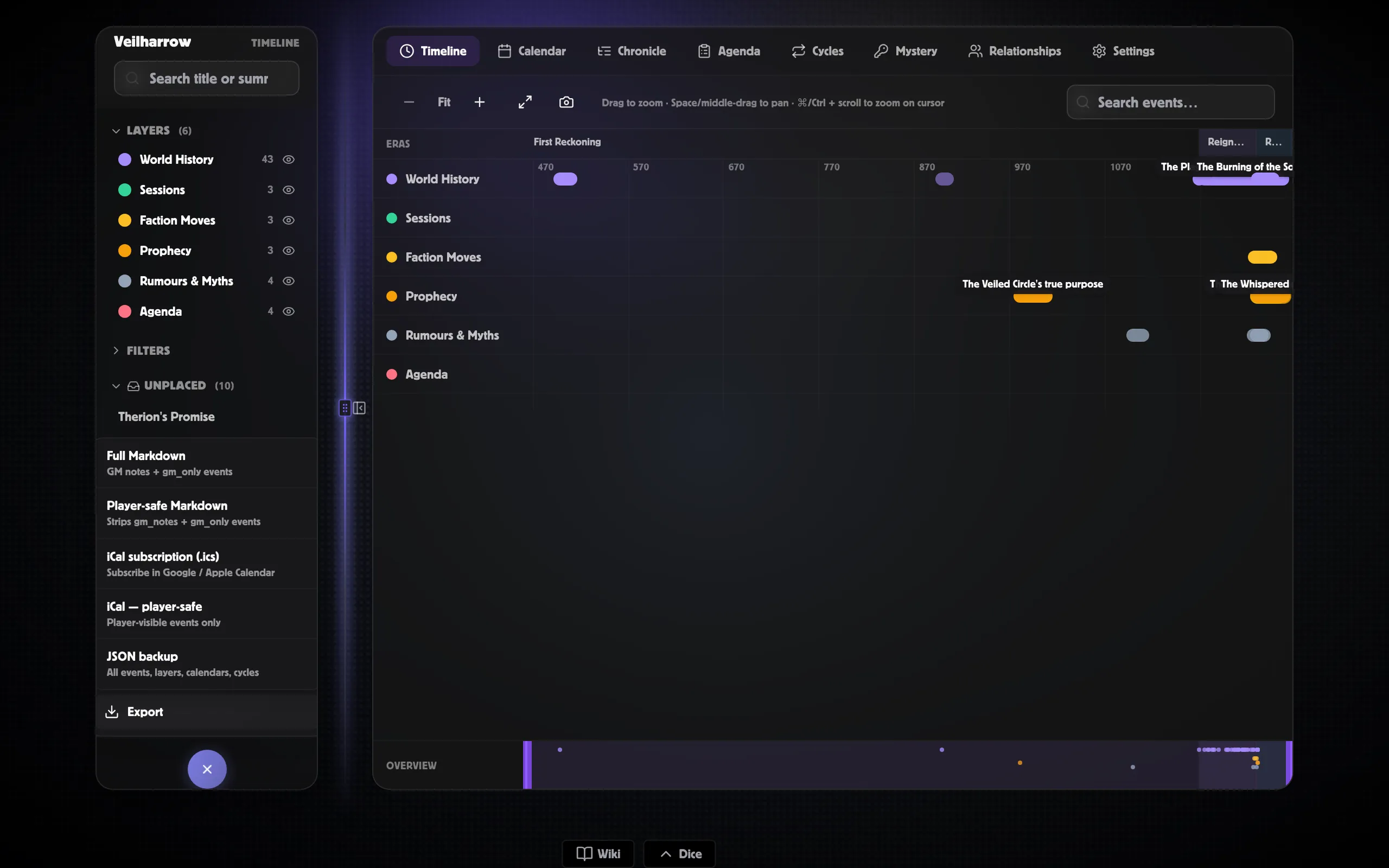
The Export dropdown in the timeline workspace’s top bar produces five flavours of download. Each one targets a different consumer:
| Format | What it’s for |
|---|---|
| Full Markdown | Your full GM view including GM notes, GM recaps, and GM only events. For personal archives. |
| Player-safe Markdown | Strips GM notes, GM recaps, and GM only events. For player hand-outs / Discord recaps. |
| iCal (.ics) | Subscribe-able iCalendar feed. Players add the URL to Google / Apple Calendar and see the world’s events on their phone. Player-safe variant available. |
| JSON backup | A complete backup of everything in the world’s timeline (events, layers, calendars, cycles, sessions, saved views, links). Editor-only. |
| PNG snapshot | Camera button on the horizontal timeline. Captures the current canvas at retina resolution; drop straight into Discord. |
The rest of this page focuses on Markdown; the other formats have
their own behaviour notes below.
What gets exported
Section titled “What gets exported”Both flavours share the same structure:
- Title + intro — the world’s name + description + the export timestamp + which view (Full / Player-safe).
- World history — events grouped by era → year. Each event shows its date (rendered in the primary calendar’s format), title, type / certainty / precision tags, summary, body, and source link.
- Sessions — one heading per session, with each session’s player recap and GM recap (in Full mode) and the events that were discovered in that session.
- Tags — each event’s tags rendered as a Tags: #war, #dynasty line.
Full and Player-safe stay in sync
Section titled “Full and Player-safe stay in sync”The Player-safe export follows the player-safe rules — GM only events are left out and GM notes are stripped. It’s the exact same filtering behind the Chronicle’s Player-safe toggle, so what you see in the Chronicle in Player-safe mode is exactly what the Player-safe export contains.
When each flavour fits
Section titled “When each flavour fits”Full Markdown — for:
- Personal campaign archives.
- Cross-GM coordination (“here’s the whole world’s state — read before you co-DM”).
- Migrating to another tool with full fidelity.
Player-safe Markdown — for:
- Sending recaps to your players after each session.
- Posting public-facing world history to your campaign Discord / blog / wiki.
- Producing a campaign log document that lives outside PostRoll.
How to use it
Section titled “How to use it”Click Export in the workspace top bar. A dropdown opens with the
two options. Click one — your browser downloads the .md file
immediately. Open it in any Markdown viewer (VSCode, Obsidian, Bear,
Marked, GitHub gist, the Astro docs site you’re reading right now).
Filename convention
Section titled “Filename convention”Files are named after your world slug:
<world-slug>-timeline.md— Full Markdown.<world-slug>-timeline-player-safe.md— Player-safe Markdown.
Re-exporting overwrites the previous download (browsers handle the conflict the way they always do).
What’s NOT included in Markdown
Section titled “What’s NOT included in Markdown”- Calendar definitions — the export uses the primary calendar to render dates but doesn’t include the calendar’s structure.
- Cycles — cycle definitions and current state aren’t exported.
- Wiki page bodies — only events, not their linked wiki pages.
- Screenshots / images — text-only.
For everything-included downloads, see the JSON backup below.
iCal subscription (.ics)
Section titled “iCal subscription (.ics)”Choose iCal subscription in the Export menu and your browser
downloads a .ics file. Two variants:
- Full — every placed event you can author or read. Editor only.
- Player-safe — same view-redaction logic as the player-safe Markdown.
Open the file in Google Calendar / Apple Calendar / Outlook to see
in-world events alongside your real-world calendar. Each event maps
to a VEVENT:
- Day-precision events render as all-day events.
- Exact events render as one-hour events anchored on the event’s time of day, or run to its end position if set.
- Year / month / era precisions still produce all-day VEVENTs at the precision’s start date.
Each calendar entry links back into the workspace, so clicking it on a desktop calendar app opens that event’s inspector.
JSON backup
Section titled “JSON backup”The JSON backup download produces a complete backup of everything in the world’s timeline: events, layers, calendars, cycles, cycle phases, sessions, saved views, and event links. Editor-only — viewers can’t export.
Use it for:
- Disaster recovery — keep a periodic backup off-platform.
- Sharing a campaign with a co-GM — they import the JSON into their own world (round-trip import is a future polish item; today the JSON is a plain-text file you can open and inspect in any text editor).
- Diffing campaign state across sessions — commit the JSON to a git repo and you have a perpetual changelog.
The filename is <world-slug>-timeline.json.
PNG snapshot
Section titled “PNG snapshot”Click the Camera button on the horizontal Timeline tab (next to the Fit button) to download a PNG of the current canvas. The image captures whatever’s visible — drag the scrubber / zoom / hide layers first to frame the screenshot. Output is at retina resolution so screenshots stay sharp.
Filename: timeline-YYYY-MM-DD.png.
The first time you click, there’s a brief pause while the snapshot tool loads; after that it’s instant.
Related
Section titled “Related”- The Chronicle tab — the Player-safe toggle preview
- “Previously on…” — the full hand-out workflow
- Visibility & reveal — what gets stripped in player-safe mode
- Saved views — name a filter set and export with it active