

The Timeline tab
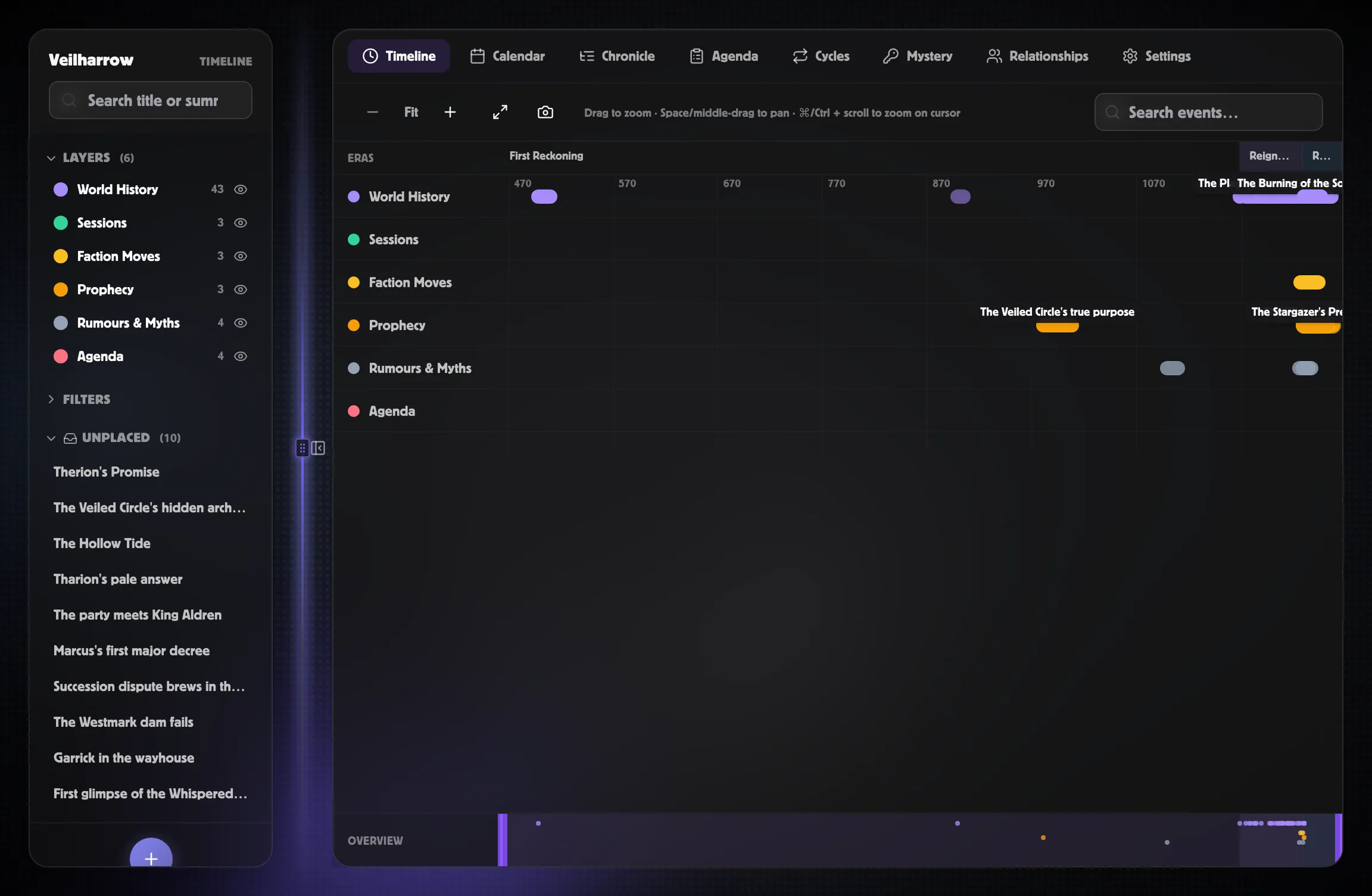
The Timeline tab is the workspace’s default landing view. It draws
every dated event as a pill on a horizontal canvas, with era bands
across the top and one track per layer below.
What you see
Section titled “What you see”- Era bands at the top, one per era in your world’s primary calendar. Each band stretches across the years it covers.
- Layer tracks below the era row — World History, Sessions, Prophecy, Rumours & Myths, Agenda, plus any custom layers you’ve added. Each track gets its layer’s colour.
- Event pills — small circles or wider bands depending on precision. Importance grows the pill: an importance-5 event shows its title above the pill; an importance-0 event is a tiny dot.
- Certainty styling — rumour, myth, and disputed events get dashed borders. False events get a strikethrough. Prophecy events get an amber glow. Unknown events fade.
- Vertical year ticks — a year / decade / century scale underneath the era bands, depending on zoom level.
If you’ve enabled cycles, the era bands keep their colour backgrounds; cycle phases show up in the Calendar tab instead.
What you can do
Section titled “What you can do”- Drag a region to zoom in. Click-and-drag horizontally on the canvas to draw a translucent rectangle; releasing zooms into that range. Drags shorter than 4px are treated as clicks so event pills still work.
- ⌘ / Ctrl + scroll — zooms about the cursor (scroll up = zoom in).
- Drag-to-pan — hold Space (or middle-click) and drag to pan the viewport without changing zoom. The cursor switches to grab / grabbing while Space is held.
- + / − / Fit buttons — discrete zoom-around-centre and a Fit button that resets the view to “all events visible”.
- Mini-scrubber at the bottom — full-bounds overview with the current view as a violet window. Drag the edge handles to zoom from the start or end; drag the middle to pan; click outside the window to recenter on that point.
- Camera button — downloads a PNG snapshot of the canvas.
- Click an event — opens the Inspector in the right rail.
- Search — fuzzy-matches event titles, summaries, and tags. Search lives in the left rail (or the inline header on Timeline).
- Toggle layers / filter — left-rail visibility toggles and precision / certainty / importance filters. Filters are AND-combined and apply to every tab simultaneously.
When the canvas is empty
Section titled “When the canvas is empty”If you don’t see any pills, check:
- All layers hidden? The empty state will tell you. Re-enable a layer in the left rail.
- Filters too tight? Clear them with the All chip on each filter row.
- No events with dates? Events with an unknown date or a floating date don’t appear on the canvas — they live in the Unplaced drawer in the left rail (and on the Agenda tab for floating events). Click an unplaced event to open it in the inspector.
Reading event styling at a glance
Section titled “Reading event styling at a glance”A rumour about a battle of importance 3 set to World visibility is drawn as a medium dashed pill in the World History layer’s colour. Hover for a tooltip with its title, date, and precision.
If you see a pill with 🔒, it’s GM-only — players using a shared read-only link won’t see it.
Related
Section titled “Related”- Creating events
- Layers
- Event fields — the full set of details behind each pill
- The Calendar tab — the same events on a calendar grid instead