

Furnishing a building's rooms
Take a building’s roof off in the battle map editor and you can make its inside your own: its furniture, its floors, its walls, doors and windows, its stairs and fires, and its lights. You can also draw rooms, passages and whole dungeons from nothing. Everything you change still reaches the table as walls, doors, windows and lights.
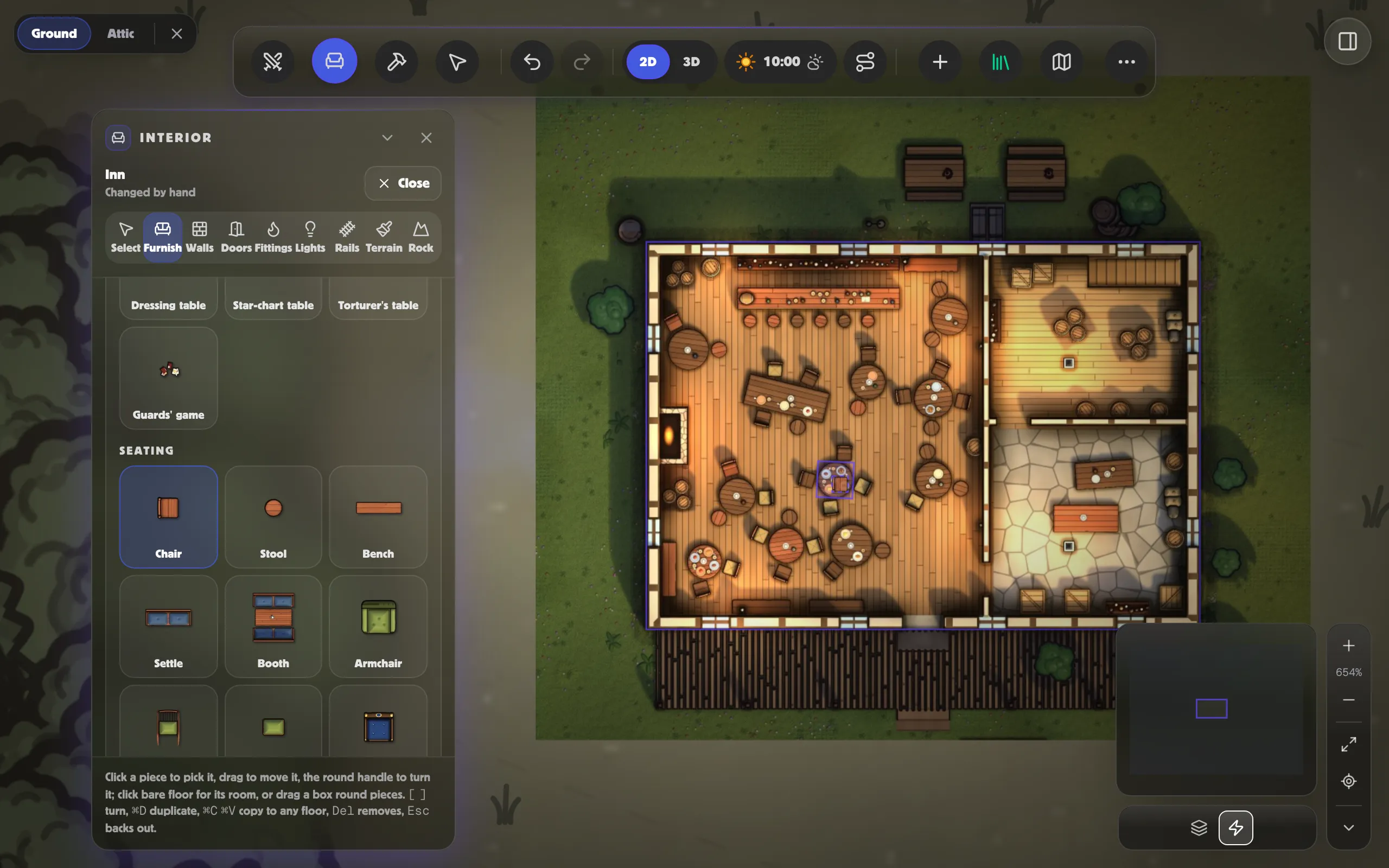
Opening a building
Section titled “Opening a building”- In the battle map editor, click a building’s round button to take its roof off. You see its rooms, and its strip shows over the map: its floors, and House, Walls, Doors & windows, Stairs and Furnish.
- Use the floor tabs in the strip to move between its floors: Cellar, Ground, First and so on. House opens the building’s own panel.
- Click the round button again, or the strip’s ×, to put its roof back.
The first thing you change in a building makes its inside yours: from then on it stays exactly as you leave it. Reset interior gives you back the building as the map first laid it out.
Furniture
Section titled “Furniture”- Click Furnish.
- Pick a pack (Tavern & inn, Home, Temple, Workshop & smithy, Farm & stable, Shop & market, Noble hall & castle, Arcane study, Dungeon & crypt), then a shelf, or search for a piece.
- Click on the floor to set it down. Pieces that belong against a wall (a bookcase, a sconce, a fireplace) turn to face into the room and sit flush with the nearest wall.
Select a piece to move it, turn it ([ and ]), copy it (⌘D, or ⌘C and
⌘V, even onto another floor) or delete it. Most pieces come in several
looks, which you choose in the inspector.
Furnish as… fills a whole room at once as any kind of room from any pack: an alchemist’s laboratory in a cottage, a treasury in a cellar. A big room gets more: a great hall twice the usual size gets two long tables. Clear the room and Clear this floor empty them again. A room that turns a corner, like an L, counts as one room: it’s furnished, floored and cleared as a whole.
Walls, doors, windows and floors
Section titled “Walls, doors, windows and floors”- Walls: draw inner walls corner to corner. Choose what they’re built of and how thick, and what the outer walls are: stone, brick, timber, cut rock, or Rough cave, a natural cave’s rock face that wanders in and out of the line you drew.
- Doors: click a wall to set a door, a double door, an open archway, bars or a window. Doors can be locked.
- Floors: click a room’s floor, then choose its Floor: boards, flagstones, marble, rushes, a dungeon’s worn flags, a cave’s rock and more.
- Terrain: brush moss, grass, dirt, sand, gravel, mud, water or a chasm over any floor (see Painting terrain).
Stairs, hearths and cellars
Section titled “Stairs, hearths and cellars”Under Fittings:
- Set the hearth against a wall, or take it out.
- Set the stair and choose its kind: straight, turning, doubling back, spiral, or a ladder, in timber or stone. The floor above opens over it.
- Add a floor or Take off the top floor.
- Add a cellar digs a storeroom under the whole building, its stair coming up through the ground floor. Open the Cellar tab to furnish it. Use Furnish as… and choose Crypt for a crypt under a temple.
- Add a level below digs a sub-cellar under the cellar, and a deep cellar under that, each with its own stair up. Fill in the lowest level takes the deepest away again.
Lights
Section titled “Lights”Torches, candles, sconces, braziers and fires light themselves, at the table too, each flickering as it should. Click Lights to see where each one reaches, change its colour or put it out, or set a light of your own anywhere.
Drawing rooms from nothing
Section titled “Drawing rooms from nothing”Click Walls in the Edit tool (or press W):
- Room: drag out a rectangle, pick a Shape (a circle, a hexagon, an L, a ring round a courtyard…) and drag it out, or click its outline corner by corner. It starts empty. A room drawn against one you made joins it, with a wall between them.
- Passage: choose its width, then drag a straight one or click it turn by turn along the grid. Where it meets a room, it opens into it through an archway; drawn between two rooms, it joins them into one.
- Stone wall, Mud wall or Dry-stone wall: a wall standing on its own outside.
The Look’s Theme chooses what’s beyond your rooms: the map’s ground, Plain backdrop (just the rooms), or Underground, for rooms carved out of rock. See Walls, lines, areas and the brush for every way to draw.
Dungeons
Section titled “Dungeons”Start from the Underground ground, or set the Look’s Theme to Underground, and every room you draw is a chamber carved into the rock. Set its outer walls to Rough cave for a natural cave. The Dungeon & crypt pack fills them with tombs, skeletons, stalagmites, mine carts and more. See Dungeons and caves on a battle map.
Start from a building
Section titled “Start from a building”The battle map creator’s Start from a building opens one building, ready to furnish:
- Blank interior: nothing drawn yet, a plain backdrop to draw your rooms on.
- A tavern, a manor, a temple, a shop, a smithy, a wizard’s tower, a castle hall, a crypt under a chapel, a dungeon carved in the rock, or a cave with rough rock walls, each already furnished.
At the table
Section titled “At the table”When you Create scene, the walls, doors, windows and lights all come along. Each floor is a level, with the map’s roofs off or liftable, and players see from their own. The levels are named for the floors: Ground floor, Upstairs (or First floor, Second floor), Attic, Cellar, Sub-cellar. A cellar is a level below the ground, and its stair takes tokens down.
Some pieces work at the table too:
- Trapdoors, shafts, a mine’s way down take tokens to the level below. A ladder or a rope asks first; steps and a ramp take them straight away. A trapdoor made to look like a flagstone stays hidden from players.
- Rock steps take tokens up to the level above, when there is one.
- A shaft with nothing under it is still a way down, but only for tokens you move, until you set where it leads.
- A pit, spiked or open, is a trap hidden from players. It stops a token at its edge and asks you what happens.
When you Download for another VTT, you get a file for each floor, and
-cellar, -sub-cellar and -deep-cellar files for the levels below.