Linking objects to entities
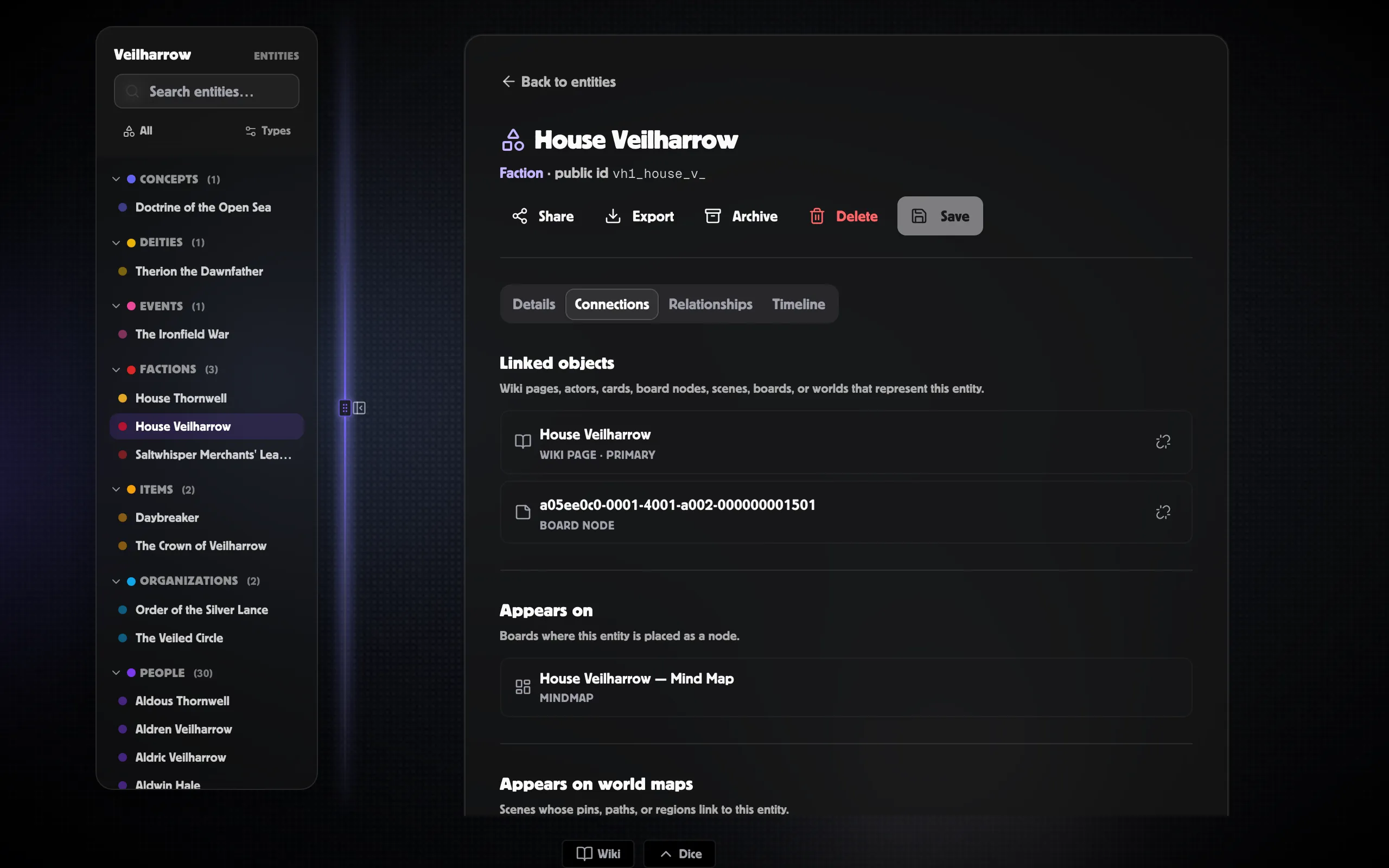
An entity is the canonical “Aldren”. Most of the time you encounter Aldren through one of his representations — the wiki article about him, his actor sheet, the node on the family-tree board, the pin on the capital. Linking (also called binding) ties those representations to the entity so they’re explicitly the same thing.
Bindable surfaces
Section titled “Bindable surfaces”Any of these objects can be linked to an entity:
| Surface | What linking means |
|---|---|
| Wiki page | This page is the article for this entity. |
| Actor sheet | This actor plays this entity. |
| Board node | This node stands for this entity. |
| World-map pin / path / region | This shape represents this entity’s location. |
| Scene | This scene depicts this entity (often a place). |
| Board | This whole board describes this entity (e.g., a family-tree board for a House). |
| World | This world is the entity. Rare — used when a world represents one canonical setting. |
A given object can be linked to one entity at a time. An entity can have many objects linked to it.
The Entity card
Section titled “The Entity card”Every bindable surface has an Entity card in the right rail. It has two states:
- Linked — shows the entity’s name, type, and a deep-link to its detail page. An Unlink option removes the binding without affecting either side.
- Not linked — shows two CTAs: Promote to entity (create a new one) and Link existing (search for an entity that’s already in the world).
One sheet, several people
Section titled “One sheet, several people”Something can represent more than one entity, and character sheets usually do. A single Cultist sheet is the sheet for every cultist in your world — Brother Marek and Sister Vell play from the same stats and are different people.
So the Entity card shows a list, not one name, with Promote another to add the next one. Unlink removes just the one you picked; the rest stay.
Names stay in step
Section titled “Names stay in step”Rename an entity and the wiki page linked to it is renamed too — and the other way round. You never have to remember to change it twice, and the mention dropdown, the graph and your timeline all follow.
This applies to the page an entity is primarily about. A page that merely mentions several entities isn’t renamed by any of them.
Promote vs link existing
Section titled “Promote vs link existing”Creates a brand-new entity and immediately links the current object to it. The dialog asks for a type and a name (defaults to the object’s title). Click Create entity and you’re done — the Entity card flips to its linked state.
Opens an entity search box. Type a name or alias; results filter live. Click an entity in the list to link the current object to it. The Entity card flips to its linked state pointing at the chosen entity.
Choosing a world
Section titled “Choosing a world”Entities always belong to a world, but actors and cards don’t — those live in your library. So when you promote an actor or card, the dialog adds a World picker: choose the world the entity should belong to and the binding completes. For scenes and boards, the dialog can also file the original into that world if it isn’t there yet.
Linking from the editor
Section titled “Linking from the editor”Inside a wiki page editor, typing [[name brings up the mention
dropdown. Entity hits appear alongside wiki pages and are tagged
entity. Picking one inserts a link that doubles as a permanent
mention edge — see Aliases & search for
how aliased names work in the dropdown.
World-map tools (pin / path / region) have a dedicated Linked entity field in their tool panel.
Removing a link
Section titled “Removing a link”Two ways:
- From the linked side — open the Entity card on the surface and click Unlink.
- From the entity — open its Connections tab, find the row for the object, and click Remove.
Either way, the binding goes away; the object and the entity both remain.