

Images on boards
You can place a standalone image anywhere on a board — a reference photo, a map, a mood-board picture, a logo. It behaves like any other node: drag it, resize it, put it in a frame, send it behind or in front of other nodes.
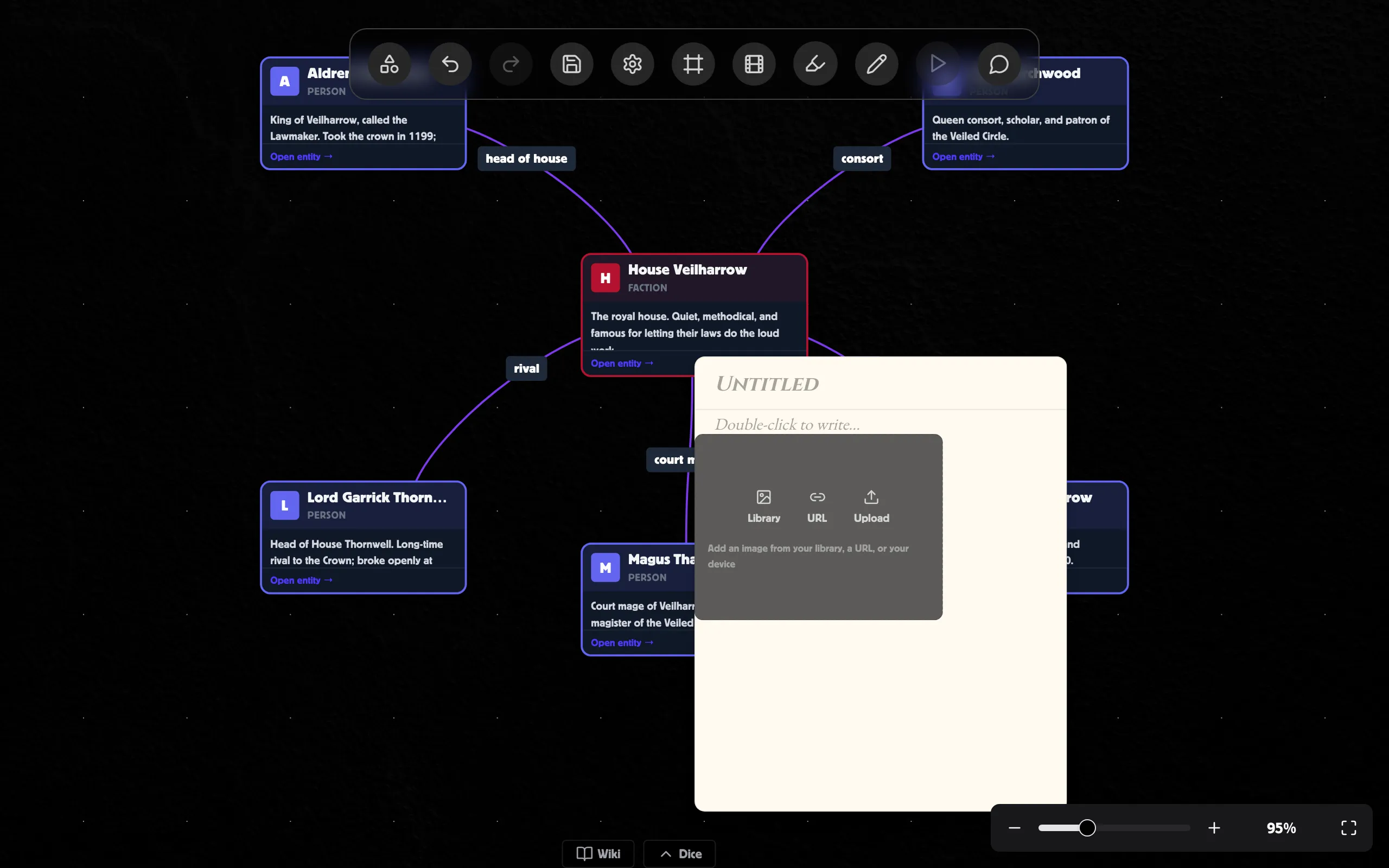
Adding an image
Section titled “Adding an image”- In the drawing toolbar at the bottom of the board, click the image tile.
- An empty image box drops onto the canvas with three choices:
- Library — pick from your asset library.
- URL — paste a link to an image on the web.
- Upload — choose a file from your device.
- Once you pick a source, the image fills the box and sizes itself to the picture’s proportions.
Connecting images
Section titled “Connecting images”Image nodes have connection handles like every other node — hover an image to reveal them and drag to another node to draw an edge. Handy for linking a reference photo to the thing it depicts.
Replacing or describing an image
Section titled “Replacing or describing an image”Select the image and open the Inspector (right rail):
- Alt text — a short description, used by screen readers and shown if the image can’t load. Good practice for shared boards.
- Replace image — clears the current picture and brings back the library / URL / upload picker.