

Streets, walls and the square
Street layout
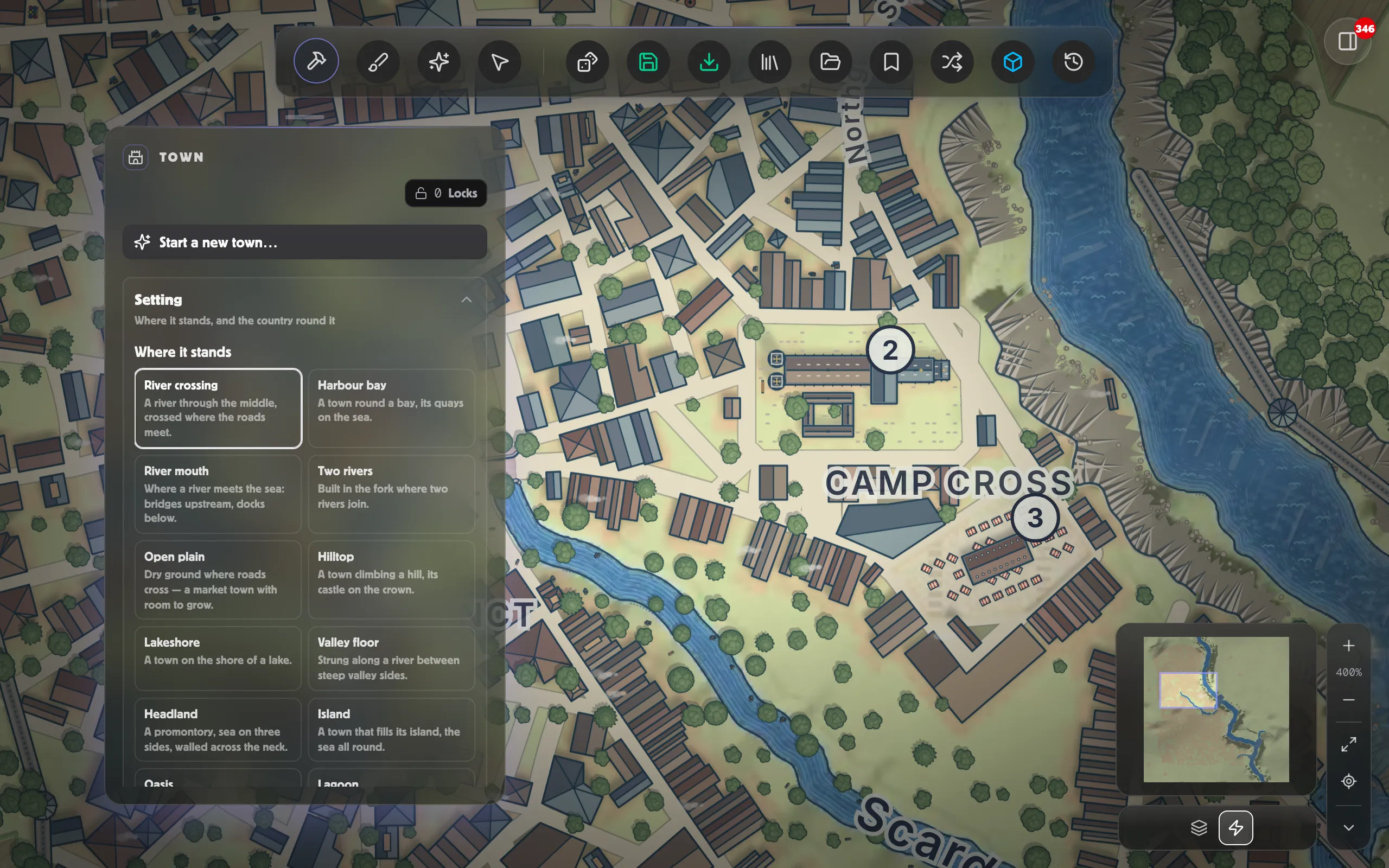
Section titled “Street layout”Under Town, Street layout sets how the town’s streets are laid:
- Organic: grown, and it shows
- Grid: set out square to the town’s own long axis
- Linear: one street with the town along it, which is what a road village is
- Terraced: streets run level along the slope and the cross-lanes climb
- Axial: boulevards driven straight through the middle
- Radial: spokes and rings from the market
Layout changes the whole street pattern, not just the main roads. If two settings look similar, it is usually because the terrain is forcing the issue; try a flatter site or a different seed.
Drawing, re-routing and taking out streets
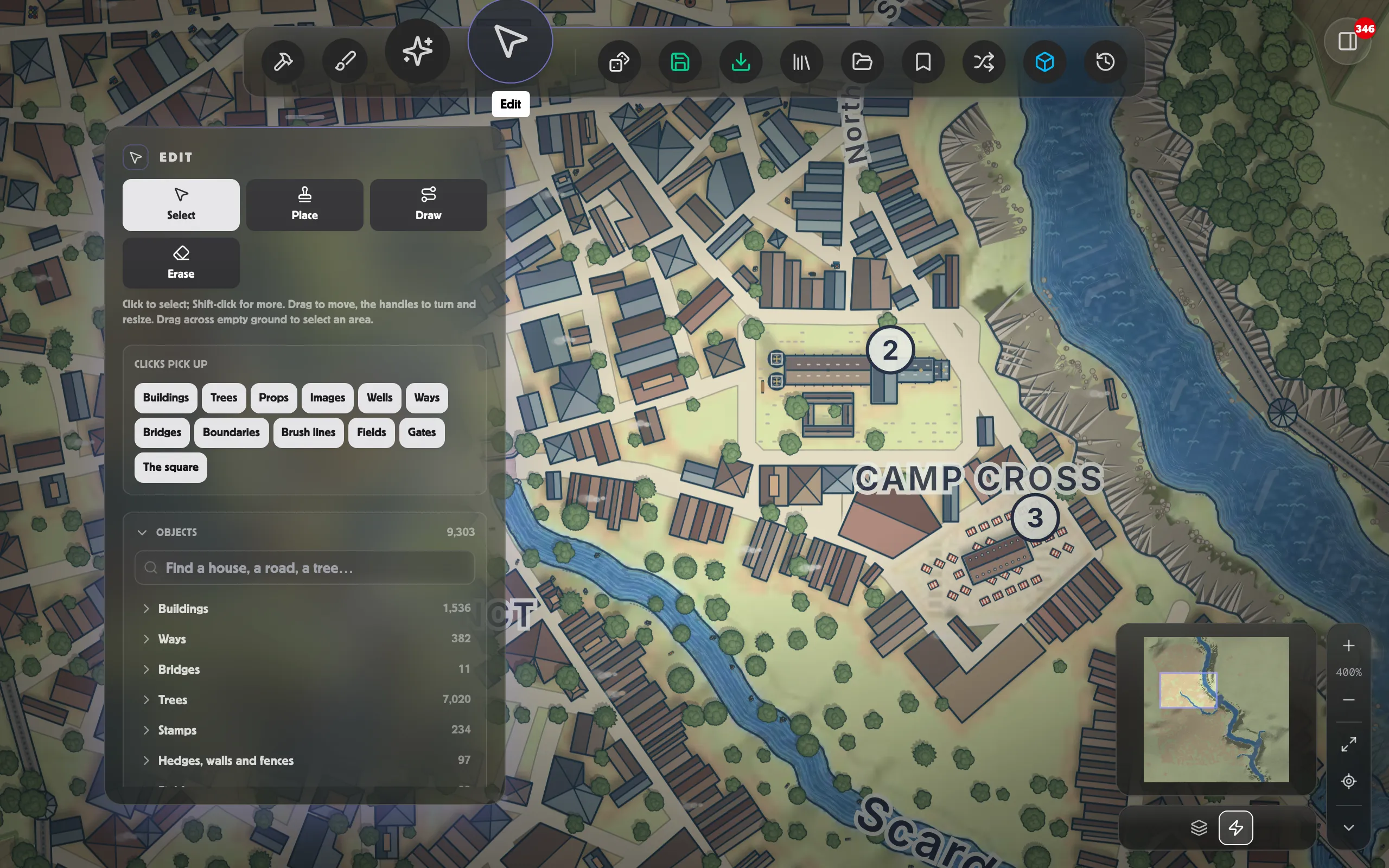
Section titled “Drawing, re-routing and taking out streets”With the Edit tool you can change the town’s streets themselves, not just paint over them. The town is laid out again where you change it: a new street has houses built along both sides, and taking one out joins the blocks either side into one. The rest of the town stays exactly as it was.
-
To draw a street, choose Lines and the way you want, then click along its line and double-click or press Enter to finish. Start or end it near another street, or just past one, and it joins it there. It can also stop short, as a dead end, and no house is built across it.
-
To re-route a street, select it and drag it, or drag its points.
-
To take a street out, select it and press Delete. The town’s outline and its riverbanks can’t be taken out: they hold its edge blocks together.
A lane, a track or a footpath you draw is a lane of the town; a road is one of its streets. A street you draw stops at the edge of the market square and of a landmark’s grounds, and at the water’s edge (drawn across a river, it gets a bridge). Drawn to a stop over a cliff or a steep bank, it stops at the top, on level ground a few metres short of the edge, as the town’s own lanes do; a street that runs on down to meet another goes through, in a cutting. A block a street cuts or joins is laid out again, so a named building in it may move to another block. Undo puts a street back as it was.
Walls and gates
Section titled “Walls and gates”Whether a town is walled depends on what it is, not just how big it is. Walling a place needs a charter, a garrison and a reason: a fortress is walled at any size, and a mill town usually isn’t at any size.
That’s the character’s call while the Wall is the one it chose. Pick a different wall (a palisade round a farming town, towers on a market town) and it is built, as long as the town is big enough to wall and not all shore.
Wall extent controls how much of the circuit was actually built. Below full, the town walls the stretches worth the money and leaves the rest open, which is what a place that ran out of funds, or only ever walled its landward side, looks like. A wall never runs across open water: where the town meets the sea, the water is the defence and you get a quay instead.
With the Edit tool, click a gate to select it:
- Drag it along the wall to move it. The town’s streets are grown from its gates, so moving one lays most of the town out afresh: the road in comes through the gate where you put it. Houses, trees and stamps you’ve edited stay where they are.
- Add a gate beside it puts another gate a little way along the wall, for you to drag where it’s wanted.
- Delete walls a gate up.
The market square
Section titled “The market square”The square stands where the roads meet, at the town’s heart, sized for the town and widening toward the gate it trades through. The town is laid out round it: the roads from the gates come to its sides, and the blocks face onto it.
With the Edit tool, click the square to select it. Drag its corners to change its shape, or drag the square to move it. The town is laid out round its square, so this lays most of its streets out afresh to meet the new one. You can also move it under Edit the town in the Town panel: turn on Move the square and click where it should be.
Bridges
Section titled “Bridges”A town bridges its river where its streets cross it. Change a bridge’s kind or state with the Edit tool; see Editing a town.