

The battle map editor
Once you’ve picked where a battle map goes in a town or village, the battle map editor puts the rest of the place away and shows you the battle map on its own: painted as it will be at the table, with its grid, ready to change. You add stamps, move things, draw walls, and take roofs off to work inside the buildings, all on the finished map.
Open the editor
Section titled “Open the editor”- In the Battle map tool, draw or move the frame where you want the battle map.
- Click Edit this battle map at the top of the panel.
A ready-made battle map, a ground you start on, and a building you start from all open straight into the editor.
To move the battle map or change its size, click the back arrow in the tab above the toolbar (Back to the town, or Back to the village). The town comes back with the frame where you left it. On a battle map you drew yourself, the same button is Move the frame.
The toolbar
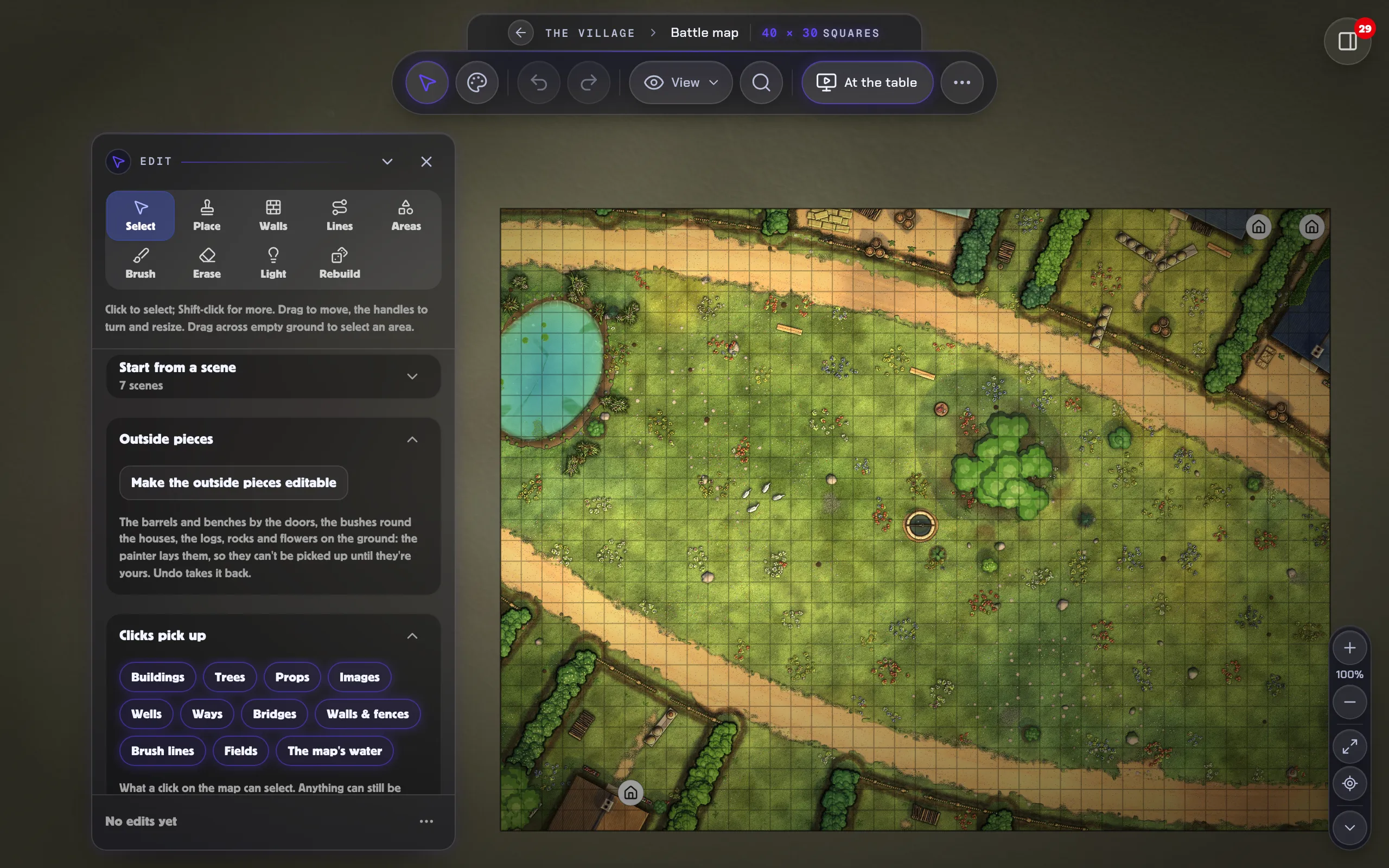
Section titled “The toolbar”The toolbar along the top holds what you use all the time: Edit and Look, undo and redo, View, Search and At the table. Point at a button to see its name and its key.
-
The tab above it shows where you are: the place, the battle map, and its size in squares.
-
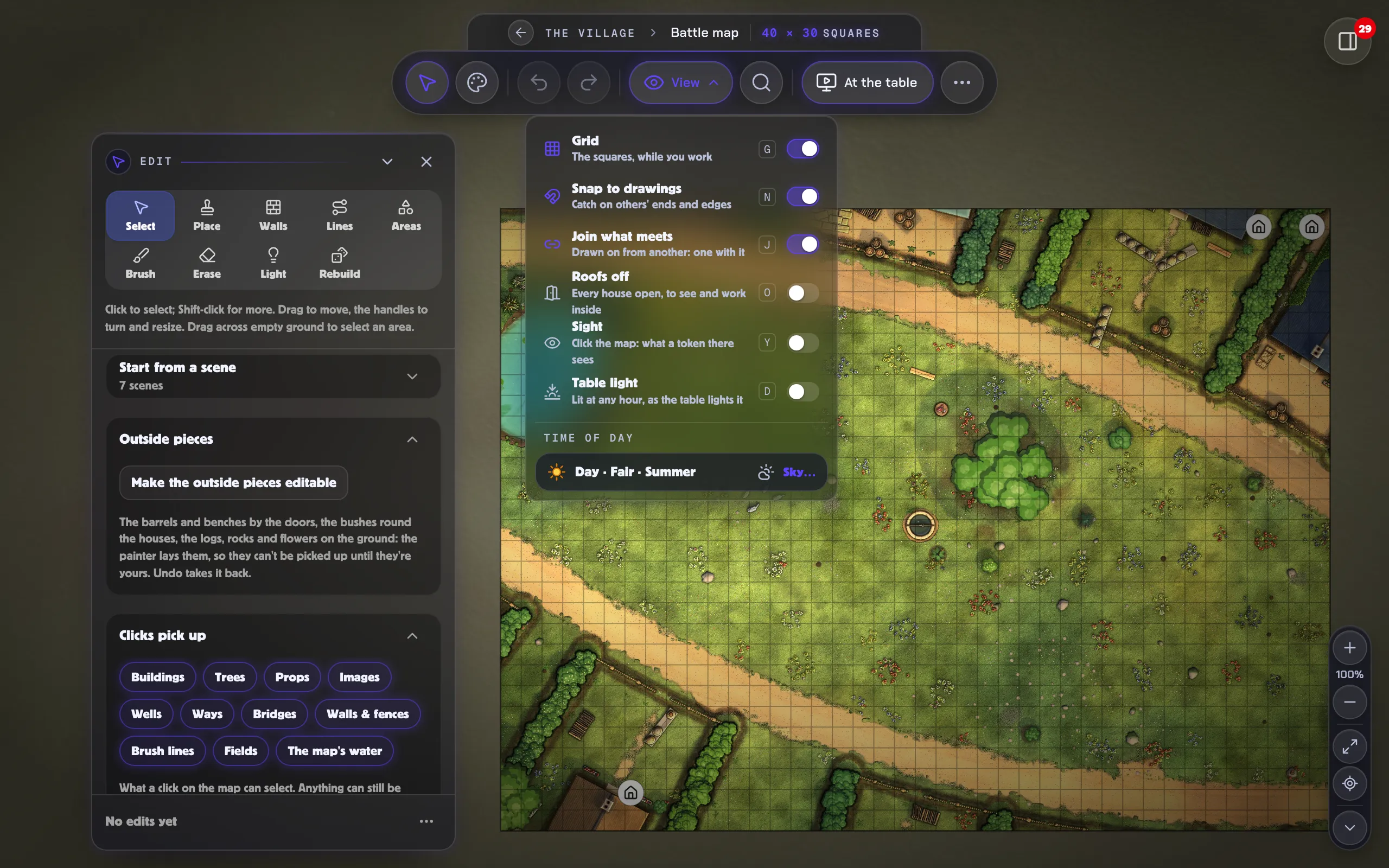
View has the switches for how you see the battle map while you work: Grid, Snap to drawings, Join what meets, Roofs off, Sight and Table light, each with its key, and the time of day and weather.
-
⋯ holds the rest: New battle map, Keep in My maps, Open in the Map Foundry, the History of your changes, and the keyboard shortcuts.
The Map Foundry is always dark, as the table is.
Seeing the battle map
Section titled “Seeing the battle map”- The view starts with the whole battle map on screen. Scroll or pinch to zoom in until a square fills a good part of the screen; the map is painted at the table’s own size, so it stays sharp close up.
- Fit in the corner (or the 0 key) brings the whole battle map back.
- The view stays on the battle map: you can’t drag it off into the rest of the town.
- Grid in the View menu (or the G key) shows or hides the squares. It’s only for you while you work; whether the made map has a grid is still the Battle map panel’s choice.
Set things down and move them
Section titled “Set things down and move them”The editor’s Edit tool works only on what’s in the battle map, and its object list lists only that.
- Place opens on the battle map’s own stamps. Every stamp is shown as it will look on the battle map. Furniture is a shelf of the same Place: pick a piece, then click inside a house to set it down (if its roof is on, the first click takes it off).
- A barrel, crate or cart can’t stand on a roof or in a wall: set down or dragged against a house, it’s shown just clear of the wall, where the battle map will put it, and stays there. Where there’s no room for one, in the middle of a house or on top of another prop, it shows faint and a click doesn’t set it down.
- Select picks things up to move, turn and resize them, as in the town.
- The outside pieces (the barrels and benches at the doors, a house’s pots, the bushes round its walls, the logs, rocks and flowers on open ground) come with the painting, so at first they can’t be picked up. Click Make the outside pieces editable under Select (or Make its outside pieces editable with a house selected): they become pieces and trees you can select, move, change or delete, like a house’s furniture inside. Undo takes it back.
Find anything, and the keys
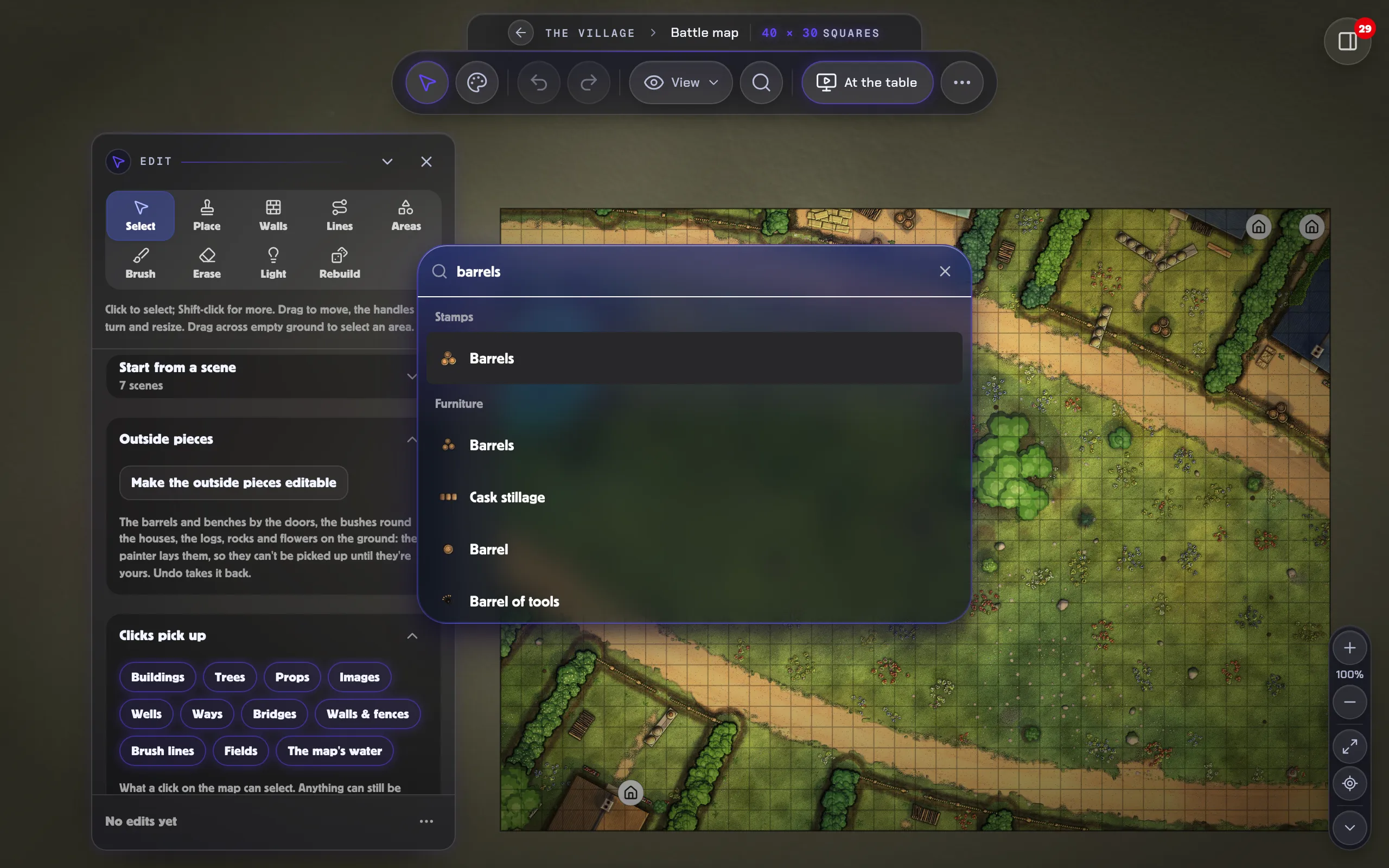
Section titled “Find anything, and the keys”Press / (or Search in the toolbar) to find any tool, stamp or piece of furniture by name. Pick a stamp or a piece and it’s ready to set down.
| Key | Does |
|---|---|
| / | Search every tool, stamp and piece of furniture |
| G | Show or hide the grid |
| N | Snap to drawings, or only to walls and the grid |
| J | Join what meets, or keep each drawing apart |
| O | Take every roof off, or put them all back |
| Y | Sight: what a point sees |
| D | Table light: lit at any hour, as at the table |
| PageUp | A floor up in the house you’re in, else a level |
| PageDown | A floor down, else a level down |
| 0 | Fit the battle map |
| Alt-drag | Copy what’s selected and carry the copy |
Drawing
Section titled “Drawing”Walls, Lines, Areas and the Brush draw on the battle map, each by what it draws, with curves, preset shapes like circles, hexagons and rings, and drawings that snap and join where they meet. See Walls, lines, areas and the brush.
When you draw a wall, its ends catch on the walls and houses already there: a ring shows when it catches on an end or a corner, a dot when it catches along a wall. So walls join up cleanly, and run right up to a house.
With Snap to the 5-ft grid on, a Building or a Room dragged from one corner to the opposite one is a rectangle in one go.
See what a token sees
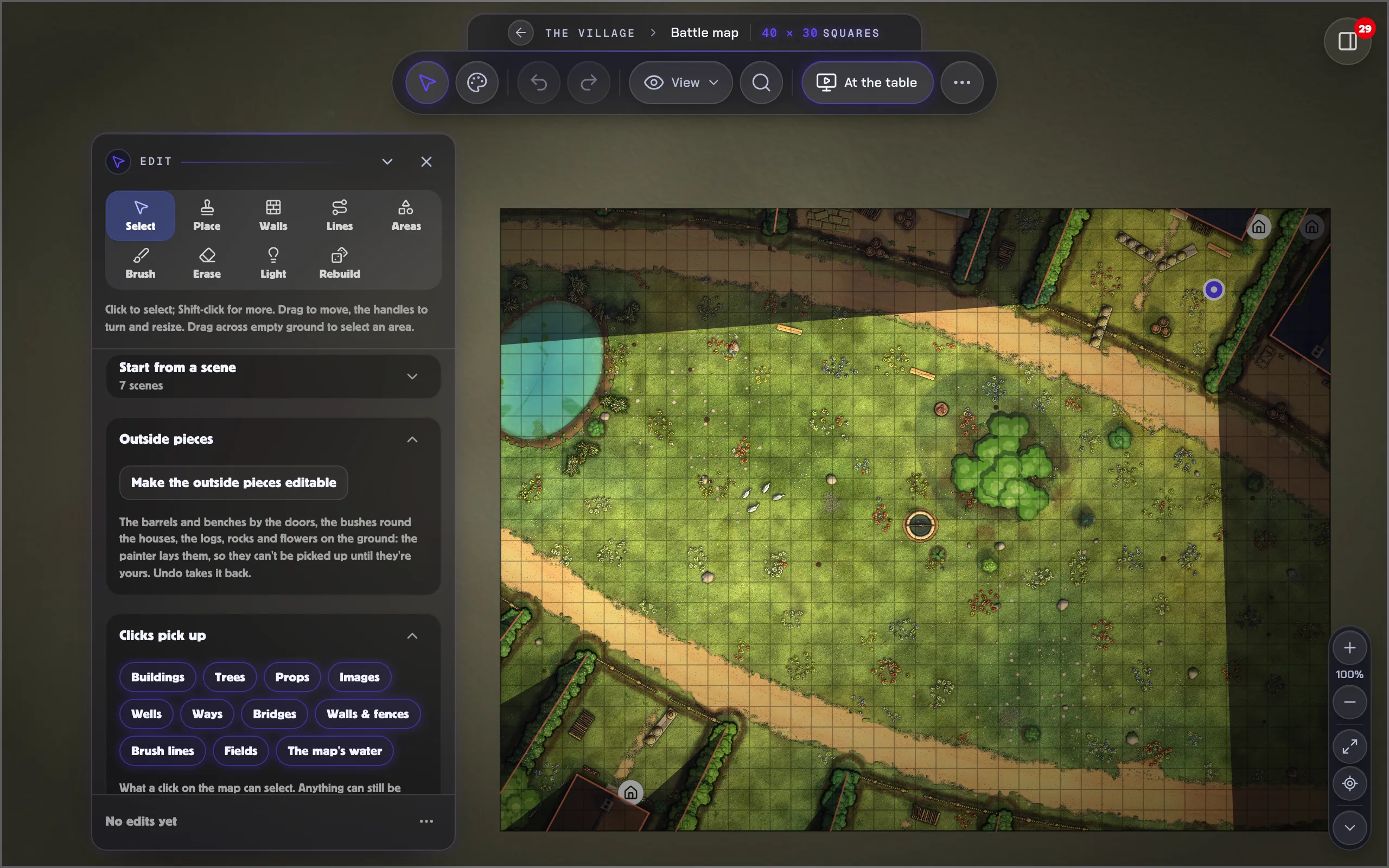
Section titled “See what a token sees”Turn on Sight in the View menu (or press Y), then click the battle map. Everything a token standing there couldn’t see at the table is darkened, and the walls that block it are traced in red. Drag to move the point. Turn it off (or press Y again) to stop.
Its look: theme, season and how it’s drawn
Section titled “Its look: theme, season and how it’s drawn”Look in the toolbar opens everything about how the battle map looks, without leaving the editor:
- Theme: none, or one of the themes (Burning, Swamp, Spring blossom, Noir, Underground and more). Spring blossom brings spring with it, and Lava and Fey bring summer.
- Sky and season: the time of day, the weather and the season. Turn on Just this battle map to give the battle map a time and season of its own, without changing the town or village.
- Drawn: as the map is, painted, on parchment, engraved or in ink, and its Art (Illustrated, Bright or Classic).
- Trees: the trees’ Crowns and Conifers, and their Pen. See Trees’ crowns.
- Clutter and age: how busy it is, how worn, market day or not, and the editor’s vignette.
They’re the same choices as the Battle map panel’s, so a change in either shows in both, except Trees, which only the editor’s Look has. The battle map is painted again as you pick.
Trees’ crowns
Section titled “Trees’ crowns”Each tree on a battle map is drawn with a crown of its own. By default the crowns are Varied: each tree gets one at random, suited to its kind and the map’s climate (no birches in a jungle). A broadleaf is Plain, Full, Open, or shaped like an Oak, a Birch, a Beech or a Lime, and a conifer is a Spruce or a Scots pine. A shrub is Round, Dense, in Sprays, In flower or a Juniper, and a hedge is drawn as a row of shrubs of one kind, with darker stretches of holly or yew.
- For the whole map, use Look, then Trees: Crowns for every broadleaf (one crown, or By kind), Conifers for every conifer (or Star, as they were drawn before), Shrubs and hedges for every shrub and hedge, and Pen. Fine draws every clump’s leaves and inks its lobes.
- For one tree, select it: its Crown and Pen rows come first, before the map’s.
- For woods, a tree line or a forest grown with the Brush, use Crown on its card before you draw. Select any tree of a forest afterwards to change The forest’s crowns.
Where crowns overlap, the larger tree is always drawn over the smaller.
At the table, at any hour
Section titled “At the table, at any hour”Turn on Table light in the View menu (or press D) to see the battle map lit at any hour while you work on it, the way the table lights a scene when its time of day is on. It starts at dusk; drag its hour slider for any other time. The shadows swing round with the sun, and after dark the windows, lanterns and lights you’ve placed come on.
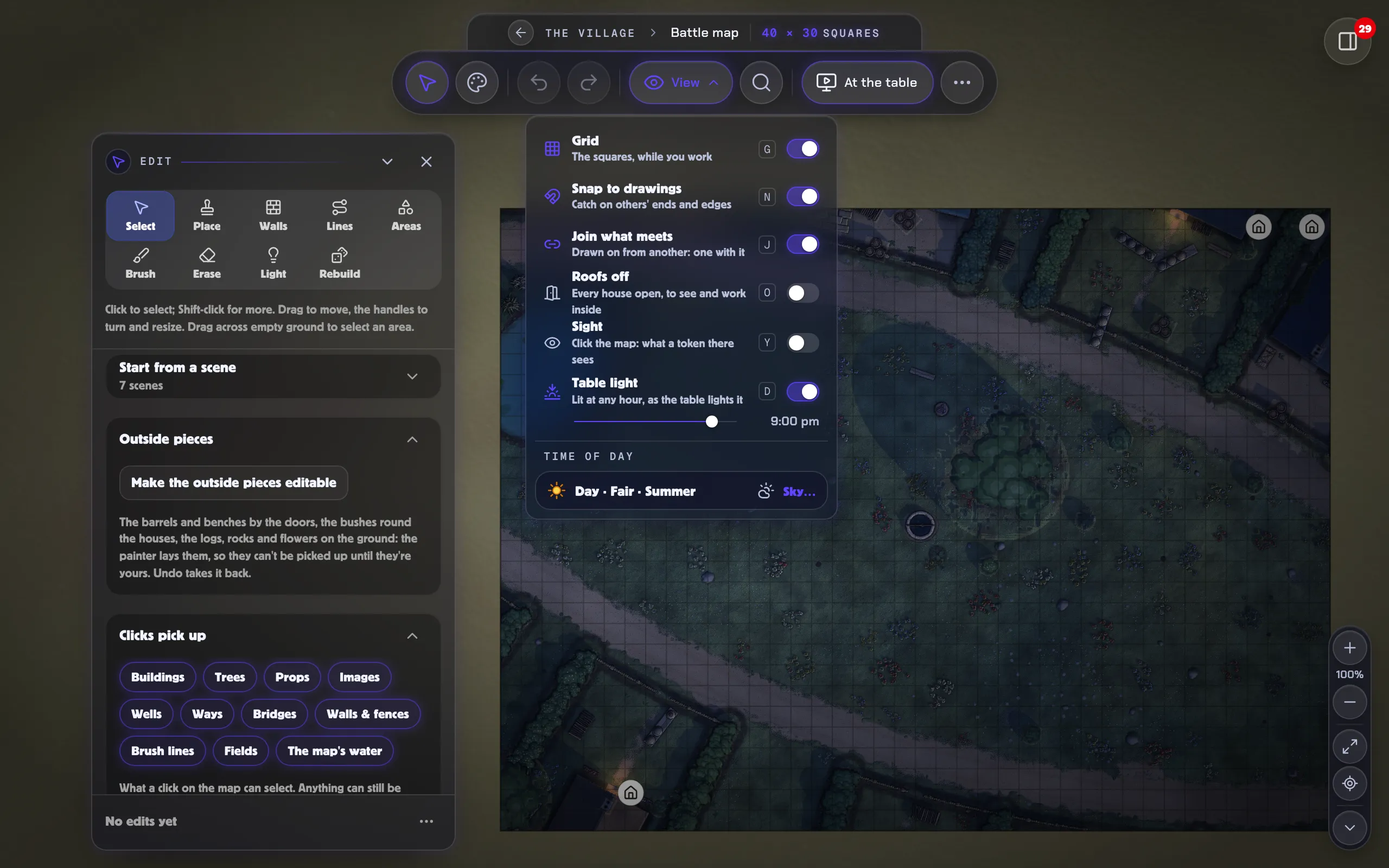
- Keep editing with it on: after each change only the part you changed is painted again, and the map stays lit at your hour.
- It’s only for you while you work. The map’s own time of day is the Sky’s, in the same menu.
- Some looks are shown at the table as painted at every hour, and Table light says so: noir, the drawn looks, the sakura, fey, cosy and underwater themes, and a battle map with raised floors.
- Press D again to go back to the map as it’s painted.
At the table in the toolbar shows the battle map the way the table will, with its depth and levels. Drag its Hour slider to see it lit at any time of day there too.
Roofs off, one house at a time
Section titled “Roofs off, one house at a time”Each house that has an inside has a small round button at its corner. Click it to take the roof off: the house opens where it stands, with the rest of the map just as it was. Click it again to put the roof back on.
- Roofs off in the View menu (or the O key) opens every house in the battle map at once; turn it off to put every roof back on.
- The house you’re working in is ringed, and shows in a strip under the toolbar with its floors (Ground, First, Attic, Cellar…), its tools (Walls, Doors & windows, Stairs, Furnish), and × to put its roof back on.
- With Select, a click inside an open house picks its furniture; a click outside it picks things outdoors. With its roof on, a click on the house picks the house itself.
Floors and levels
Section titled “Floors and levels”A house’s floors are in its strip under the toolbar, lowest first. Click a floor to work on it; the floors above it are cut away. The house itself shows the floor you’re on next to its round button, with arrows to go up or down, and PageUp and PageDown do the same.
- + after the floors adds A floor on top (with the walls and windows of the floor below, and nothing in it yet) or A cellar, and takes off the top floor or fills in the cellar. A new floor opens to work on straight away.
- Stairs in the strip sets a stair up to the floor above: click where it starts. When nothing inside leads up to the floor you’re on, a note under the strip says so, with a button to set a stair on the floor below.
A battle map with raised floors, such as a town wall’s walk, a bridge’s deck or a treetops deck, has Levels in the toolbar. Pick a level to see the map from it, with everything above it cut away, so you can work underneath. Every level shows it all again. With no roof off, PageUp and PageDown step through these levels. The battle map you make always has every level.
Related
Section titled “Related”- Battle maps: the frame, the choices, and making a scene.
- Inside the buildings: rooms, walls, doors and furniture in depth.
- Drawing a battle map yourself: starting on open ground.
- Walls, lines, areas and the brush: every way to draw, shapes, snapping and joining.