

Aliases & search
Characters and places usually go by more than one name. Aldren is also
“the Lawmaker”, “King Aldren”, “Aldren I”. Aliases let any of those
strings find the same entity in search and the mention dropdown — and
when you write [[the lawmaker]] in a wiki page, the link reads “the
Lawmaker” while still pointing at Aldren.
Adding an alias
Section titled “Adding an alias”-
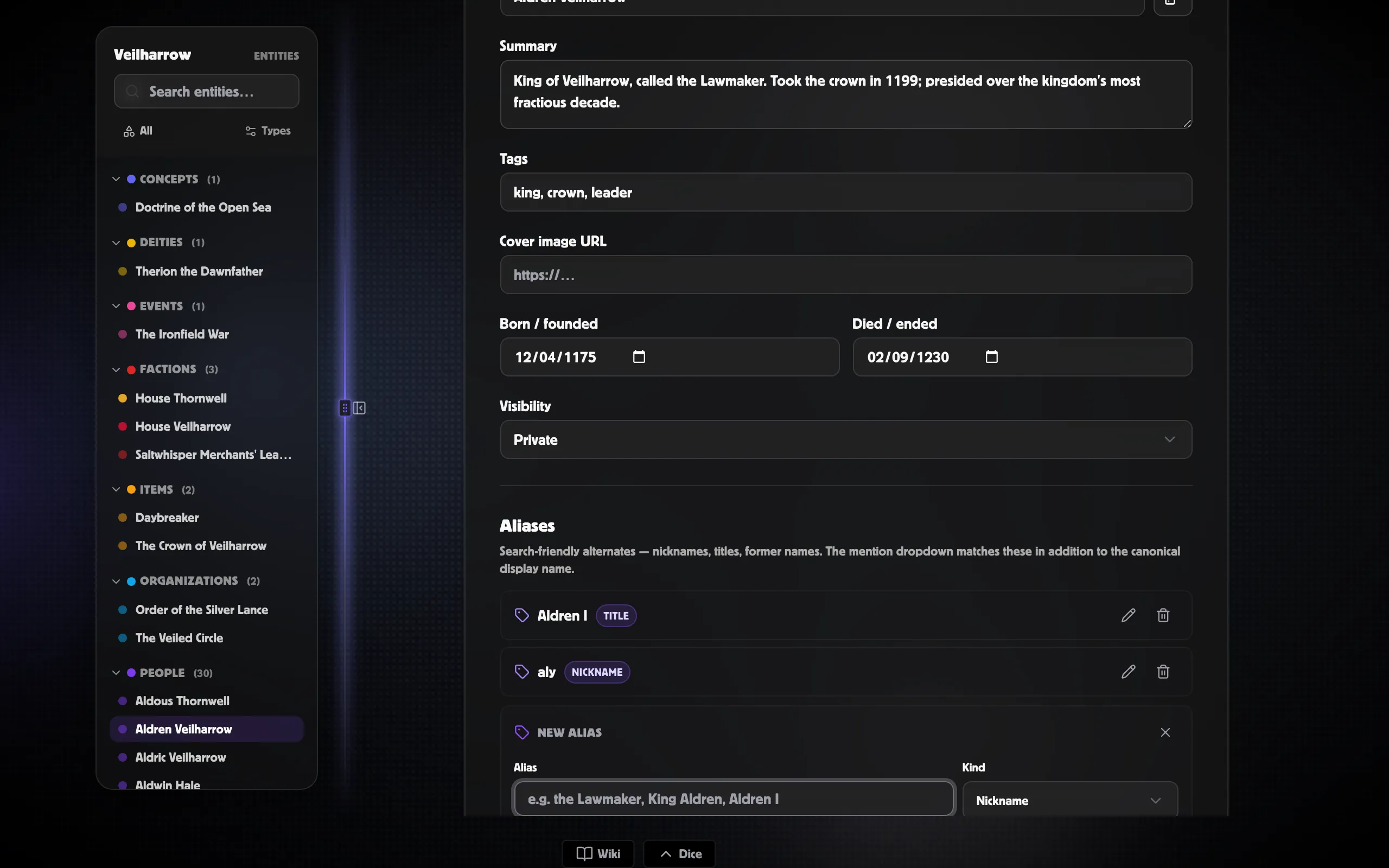
Open the entity’s detail page and stay on the Details tab.
-
Scroll to the Aliases section.
-
Click + Add alias.
-
Type the alternate name and pick a kind: Nickname, Title, Epithet, Maiden name, Former name, Transliteration, or Abbreviation.
-
Leave Match this alias in mention search checked unless you want the alias to exist for display only.
-
Click Add alias.
Where aliases show up
Section titled “Where aliases show up”-
Mention dropdown. Inside any wiki editor, typing
[[the lawmakersurfaces Aldren as an entity hit, labelledthe Lawmaker → Aldren · person. Picking it inserts a link whose visible text is the Lawmaker (the alias you typed), but the link still points at Aldren’s entity page. -
Command palette. Hitting Cmd/Ctrl+K and typing an alias finds the entity. Alias-only matches (where the canonical name doesn’t contain the query) are ranked above incidental description hits.
-
Object Browser. When the type filter is set to entity, alias hits appear in the same picker.
Searching a world you were invited into
Section titled “Searching a world you were invited into”Search covers worlds shared with you, not just your own. If someone has invited you into their world, its pages and entities turn up in the command palette and on the search page alongside yours.
What doesn’t cross over is anyone’s personal library — their characters, cards, tokens and images stay theirs. Those travel with a person rather than with a world, so being invited into the world doesn’t include them.
One result per person
Section titled “One result per person”An entity and the page written about it are the same person, so search shows them once, as the entity — the row that carries the type, the aliases and the lifespan, and that leads everywhere else.
Pickers behave differently on purpose: when you’re choosing a page to embed or attach, you get the actual page, because that’s the thing you’re picking.
Family-tree people sync
Section titled “Family-tree people sync”If a Person entity is linked to a family-tree person, that person’s nicknames become aliases on the entity automatically:
- Adding a nickname in the family-tree person editor creates the alias on the entity.
- Linking an existing person who already has nicknames pulls them in on the spot.
- Removing a nickname does not delete the alias. Once an alias is on an entity, it’s yours to manage in the Aliases section above.
This is why Person entities promoted from a family tree often start with a list of aliases populated.
Hiding an alias from search
Section titled “Hiding an alias from search”The Match this alias in mention search checkbox controls whether the alias is offered in autocomplete. Keep it checked for nicknames and titles people will actually type. Uncheck it for archival entries you want recorded but not surfaced — old transliterations, scribal spellings, etc.
Editing or removing an alias
Section titled “Editing or removing an alias”Each row in the Aliases section has a pencil icon (edit) and a trash icon (delete). Edits save immediately on Save.