

Paths & routes
On a World Map scene, paths are the lines that connect your world — roads, rivers, borders of the wild, and the routes your party travels. You draw them by clicking a series of points, then style the whole line.
Draw a path
Section titled “Draw a path”-
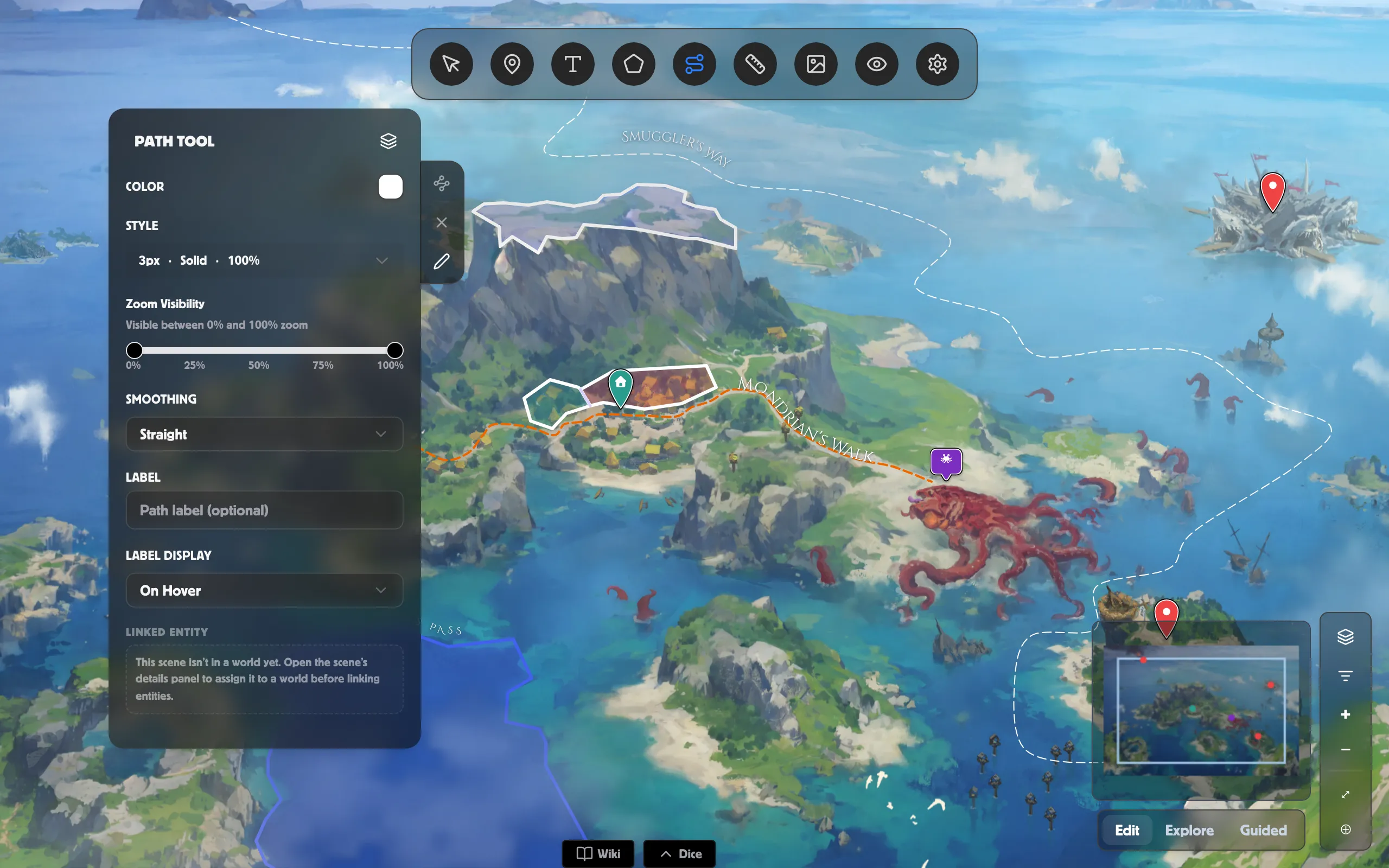
Open a World Map scene and pick the Path tool from the toolbar.
-
Click Draw path (the pen button on the panel’s edge).
-
Click along the map to drop each point of the line.
-
Click Stop drawing when you reach the end.
Edit or delete points
Section titled “Edit or delete points”Select a path, then use the buttons on the panel’s edge:
- Edit path — turn on editing, then drag any point to move it. Click Stop editing when you’re done.
- Delete selected point — while editing, click a point to select it, then hit this button to remove it.
Style the line
Section titled “Style the line”- Color sets the line’s colour.
- Open Style for Width (1–10px), Arrows (arrowheads along the line), a line Style of Solid, Dotted, or Dashed, and Opacity.
- Smoothing — Straight for sharp corners, Smooth for gentle bends, or Curved for a flowing line.
Add a label
Section titled “Add a label”Type into Label to name the path, then set Label Display to On Hover, Always, or Never. Once a label is set, its styling controls appear — including the option to have the label follow the line’s curve. See Text & labels for the full label styling.
Control when a path appears
Section titled “Control when a path appears”Drag Zoom Visibility so a path only shows within a zoom band (“Visible between 25% and 75% zoom”) — useful for keeping regional roads off the world view.
Link it to your world
Section titled “Link it to your world”Link entity… ties the path to a place or route in your world. You can also link it to your timeline so it reveals as your story unfolds — see Time & history on a map.
Related
Section titled “Related”- Pins & markers — mark the places your paths connect.
- Text & labels — full styling for path labels.
- Regions & borders — draw kingdoms and territories.
- Time & history on a map — reveal routes over time.