

World Hub
The World Hub is the front door to a world. When you open a world from your worlds list, the home screen, the command menu or a share link, you land on its Hub: a cover-art landing that gathers everything the world contains into one glanceable place.
What you’ll see
Section titled “What you’ll see”The Hub is tinted by your world’s cover image and opens on the Overview tab, which shows every surface at once:
- Wiki — page count and your most recently edited pages.
- Entities — your canonical people, places, factions and items, grouped by type.
- Timeline — the most recent events in your world’s history.
- Boards — visual boards bound to this world, as thumbnails.
- Scenes & Maps — battle maps and scenes bound to this world, plus a jump to the world map.
A strip of counters across the top gives you the totals at a glance.
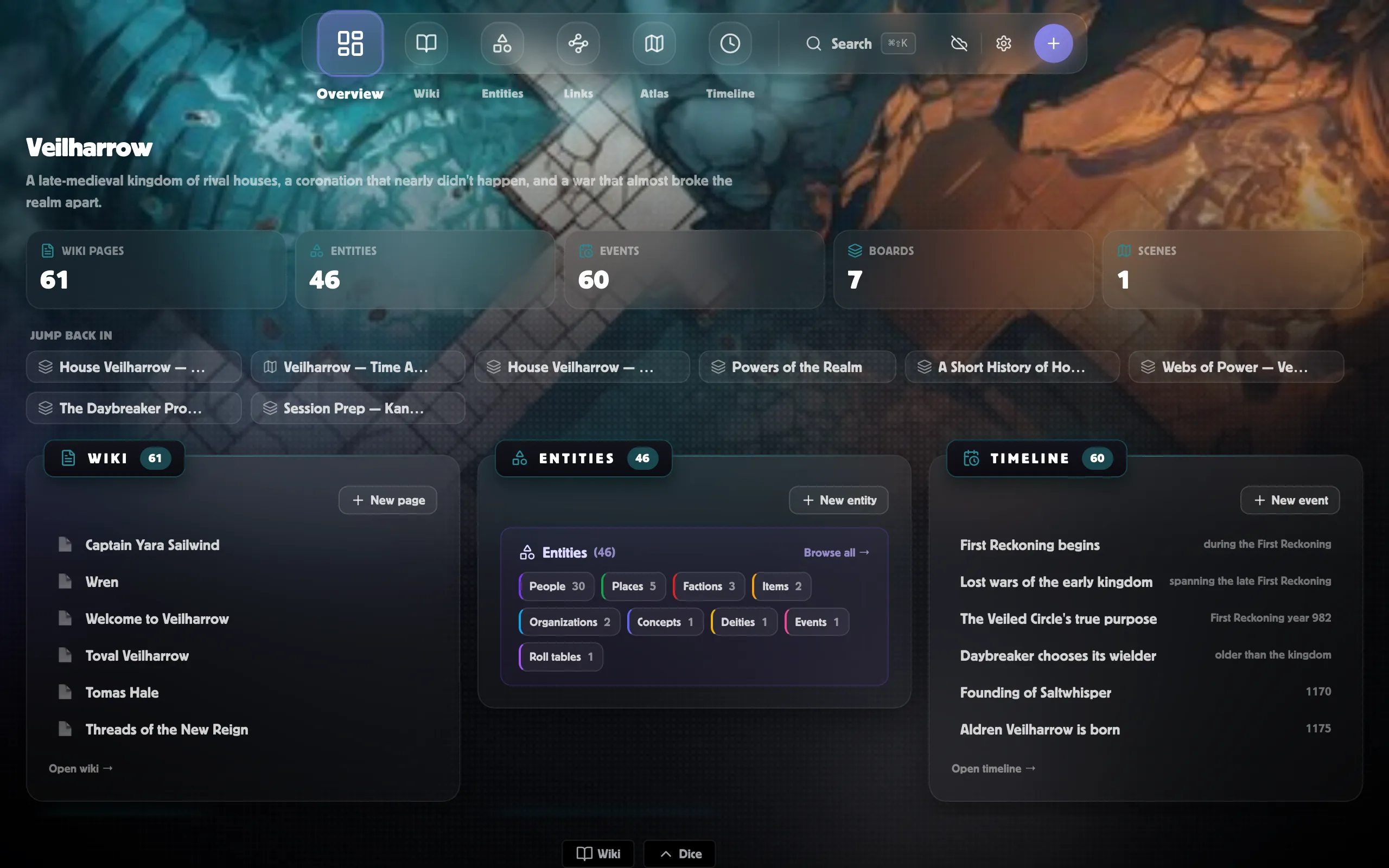
Each tab is the actual surface, embedded right in the Hub — not a summary:
- Overview — the dashboard: every surface at a glance (the default).
- Wiki — your full wiki: the page tree beside the page editor. Pick a page to open it without leaving the Hub.
- Entities — the type sidebar plus the browser and editor, so you can filter, search, open, and create entities in place.
- Links — the whole-world link graph: every connection between your pages and entities in one interactive view.
- Atlas — your world’s visual surfaces: pick a board to open its canvas, the world map to open the map generator, or a scene to jump into the tabletop.
- Timeline — the full timeline workspace (timeline, calendar, chronicle, agenda, cycles…).
The top bar has a View in full button to pop the current item out into its own full-screen editor when you want to focus. Every surface also has its own page if you’d rather work on just one (e.g. the wiki, the timeline, or the atlas alone).
Quick access
Section titled “Quick access”The top bar follows you across every tab:
- Search (⌘⇧K) — find anything in the world (pages, entities, events, boards, scenes) and jump straight to it. It searches only this world; plain ⌘K still opens the app-wide command palette.
- + New — create a page, entity, event, board, or scene from anywhere.
- Jump back in — the Overview shows what you edited most recently across the whole world, and you can pin the pages, entities, or boards you keep coming back to.
Creating things from the Hub
Section titled “Creating things from the Hub”Every panel has a quick-create button so you can add to your world without leaving the Hub:
- New page drops a blank wiki page and opens it.
- New entity opens the entity dialog.
- New event adds a timeline event inline.
- New board / New scene create the item and bind it to this world.
Cover, sharing and the wiki
Section titled “Cover, sharing and the wiki”From the top bar you can:
- Cover — swap the world’s cover image (owners only). The Hub’s accent colour follows your cover art.
- Share — open the sharing dialog to invite collaborators or create a share link.
- Enter wiki — jump into the world’s wiki. From any wiki page you can return to the Hub via the grid icon at the start of the breadcrumb bar.
Related
Section titled “Related”- Worlds — the tab-by-tab map of this section
- Creating & managing worlds — settings, cover art, collaborators
- The Wiki — the Hub’s biggest tab, in depth
- The Atlas tab — boards, scenes and world maps
- The Links tab — the world link graph