

Relative dating
Some events don’t have a fixed date — they happen relative to another event. “The day after the king’s death.” “Three weeks before the council.” PostRoll has a precision mode for this: relative dating.
When you mark an event as relative, you pick:
- An anchor event — any other event in the world.
- An offset — signed days / hours / minutes.
The event’s effective date is the anchor’s date plus the offset.
Move the anchor and this event moves with it.
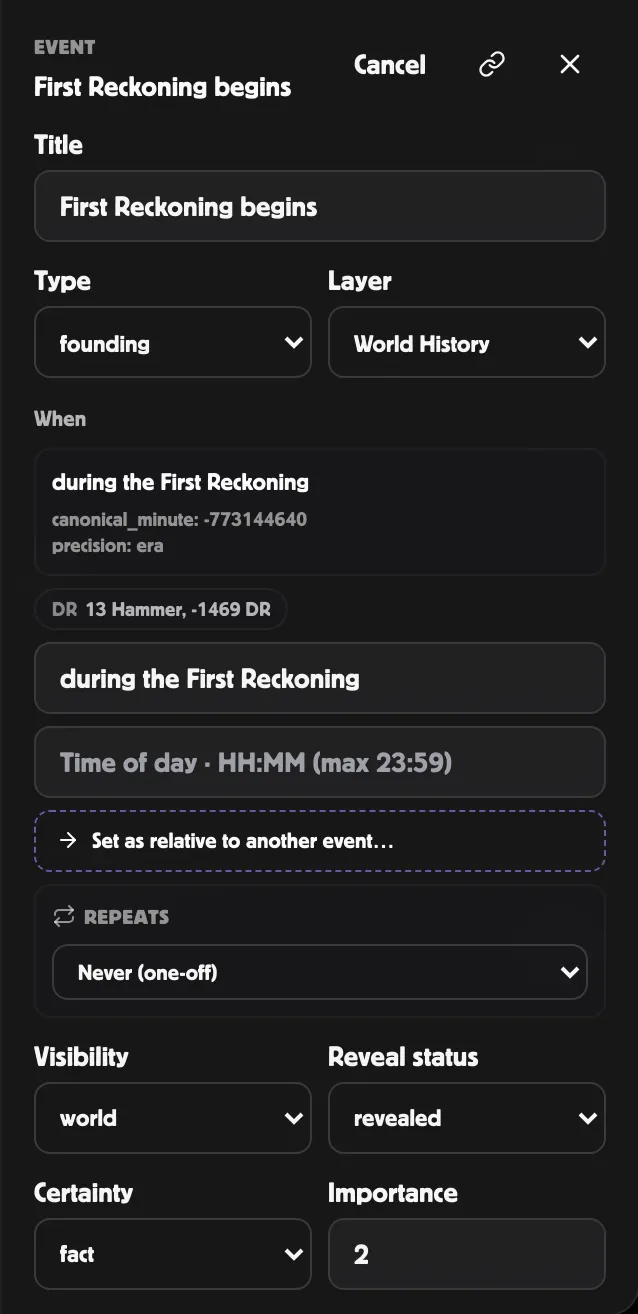
How to set it up
Section titled “How to set it up”In the Event Inspector, edit mode:
-
Scroll to the When section.
-
Click + Set as relative to another event… under the date inputs. The relative-dating panel expands.
-
Click the Pick an anchor event… dropdown. A search box and list appear. Type to filter; click an event to pick it.
-
Choose after or before in the direction selector.
-
Type a number into the d, h, m inputs to set the offset. 3 days after =
after,d=3,h=0,m=0. 2 hours before =before,d=0,h=2,m=0. -
The panel shows the resulting master timeline position as a preview. Save the inspector.
What the workspace shows
Section titled “What the workspace shows”When the event isn’t in edit mode, the inspector shows a compact read-out:
Relative: +3d 0h 0m from The Burning of the South Tower
In the Timeline / Calendar / Chronicle tabs, the event is treated like any other dated event — sorted, displayed, and shown using its effective date.
When the anchor moves
Section titled “When the anchor moves”Edit the anchor’s date and save. The relative event’s master timeline position updates the next time you edit it — when you next save the relative event, it re-syncs to the current anchor. Relative events don’t move on their own the instant the anchor changes; they catch up when you next save them.
If you want the relative event to “freeze” at its current date — say the anchor moves but the dependent event has now actually happened — toggle the Clear button in the relative panel, then re-author the date as a normal day-precision date.
When the anchor has no master timeline position
Section titled “When the anchor has no master timeline position”If the anchor itself is unplaced (a floating date, an unknown date, or session precision), the relative event won’t have a master timeline position either, and will appear in the Unplaced drawer. As soon as the anchor gets a real date, save the relative event and it’ll snap into place.
The inspector shows an amber warning when the anchor has no master timeline position, so this isn’t a surprise.
When NOT to use relative dating
Section titled “When NOT to use relative dating”- For session events. Use session precision directly — that ties the event to the session’s number, which is more stable than picking an anchor event.
- For one-off “I don’t know yet” events. Use an unknown date or a floating date.
- For prophecies. Set certainty to Prophecy instead — the visual styling makes the in-world status clear, and you can keep the date as your best guess.
Related
Section titled “Related”- Dating events — precision modes overview
- Cause and effect — separate feature: declare causes / consequences between events
- Event fields — the anchor event and offset fields