

Layers & filters
Layers let you group everything on a world map — pins, regions, paths, text, and images — so you can show or hide whole groups at once. Filters are a quicker, personal way to hide feature types just for your own view while you work.
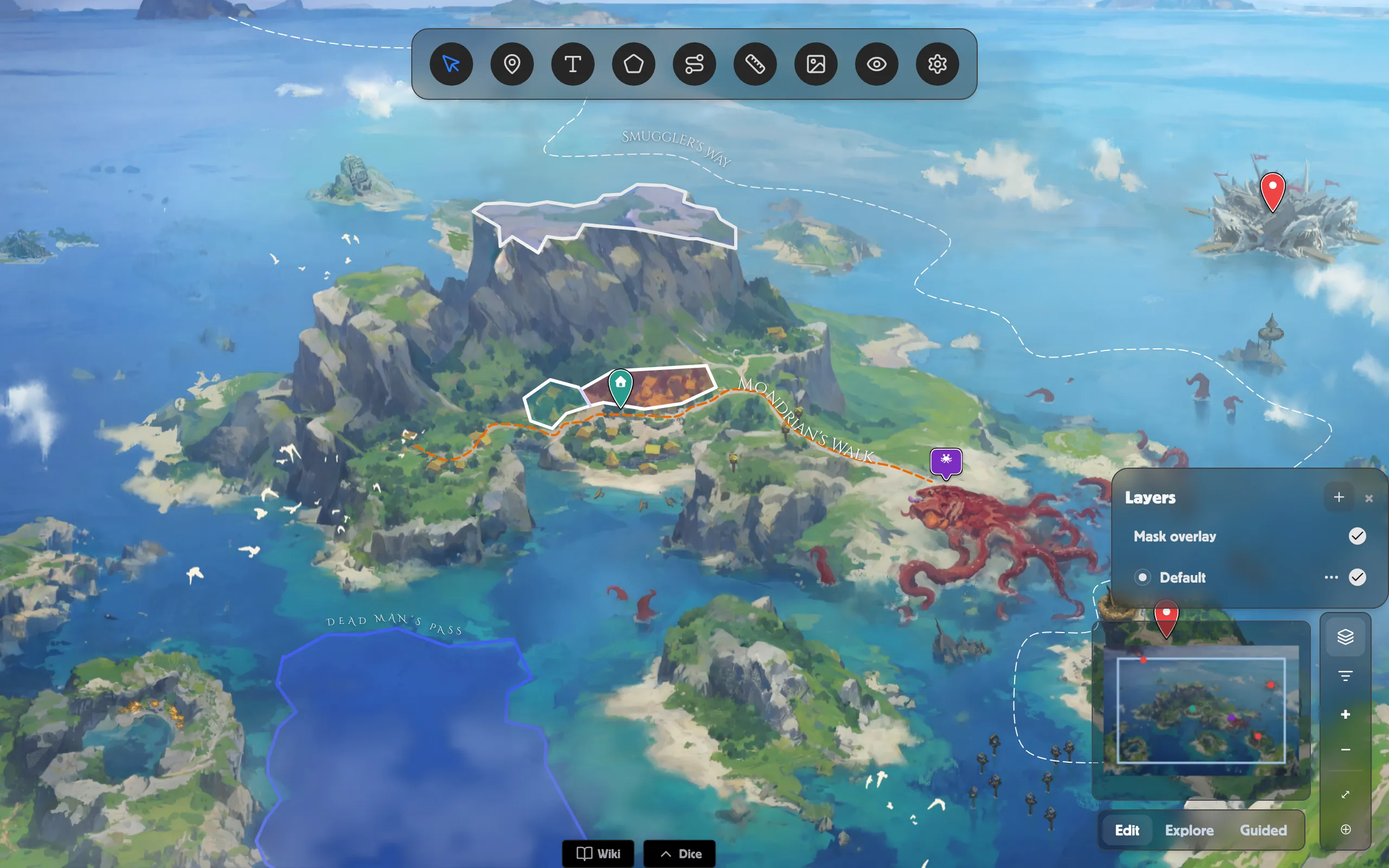
Work with layers
Section titled “Work with layers”Open the Layers button in the toolbar:
-
Click the + to add a layer. New features you draw land on the active layer.
-
Set the active layer with the radio button beside its name.
-
Show or hide a layer with the checkbox at the end of its row.
-
Open a layer’s ⋯ (options) menu to Rename or Delete it.
The Mask overlay checkbox at the top of the popover turns your fog cover on or off — see Masks & reveal.
Put a feature on a layer
Section titled “Put a feature on a layer”Each tool’s panel has a Select Layer button. Open it, and under Layer choose which layer this feature belongs to — that also makes it the active layer for whatever you draw next.
Reveal a layer to your players
Section titled “Reveal a layer to your players”In a live room only, every layer row gains an eye toggle:
- Hidden from players — click to reveal shows the whole layer to your table.
- Visible to players — click to hide takes it back.
Great for keeping a “secrets” layer dark until the moment you want it seen.
Filter your own view
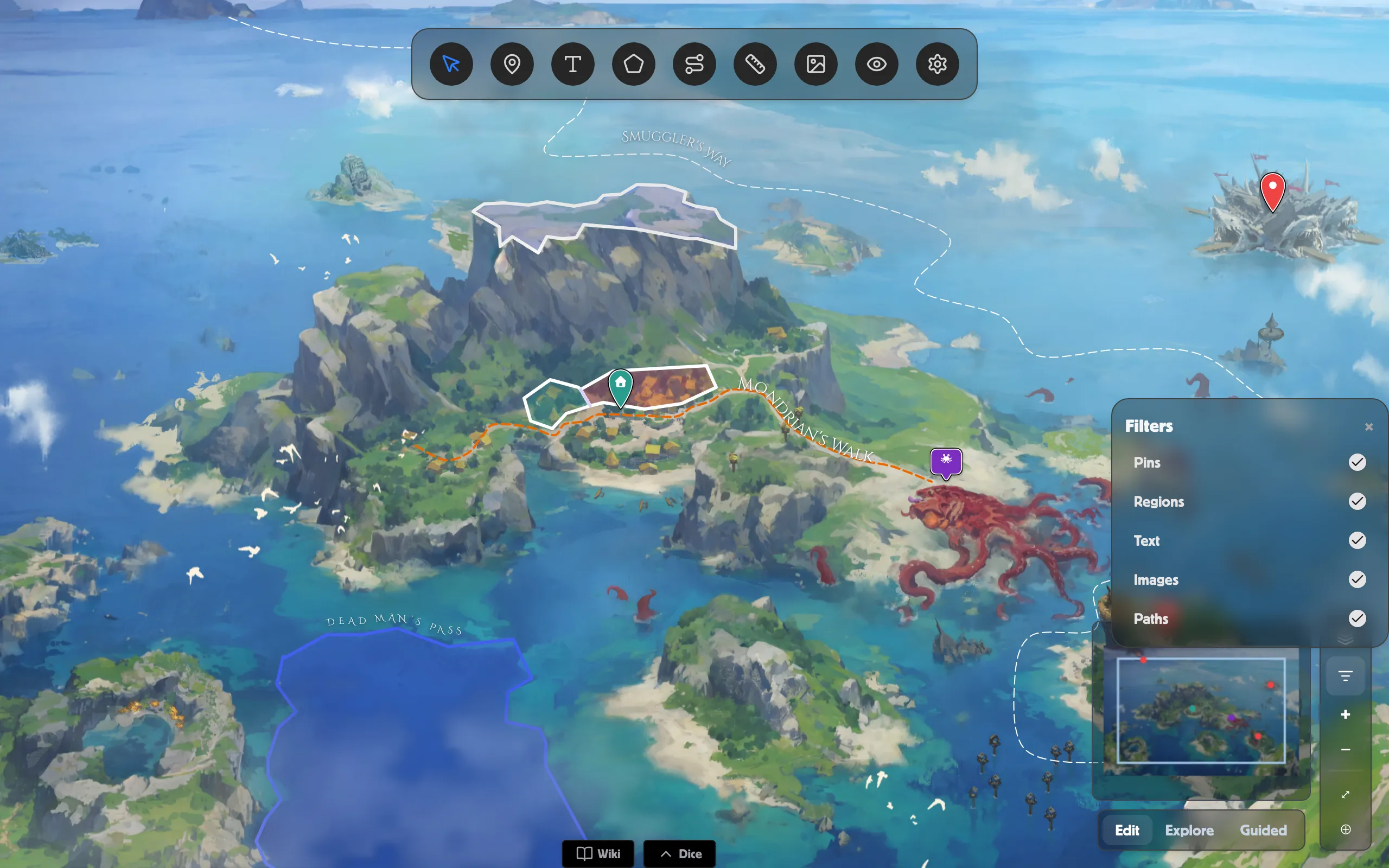
Section titled “Filter your own view”Open the Filters button for a quick tidy-up while you work. Untick any of Pins, Regions, Text, Images, or Paths to hide that type.
Related
Section titled “Related”- World Map overview — everything on a world-map scene.
- Masks & reveal — the Mask overlay toggle.
- Pins — features you can sort onto layers.
- World Map in a Room — reveal layers live.