

Masks & reveal
On a World Map scene, the Mask Tool is your fog of war. Cover the parts of the map your party hasn’t reached yet, then cut holes in the cover — reveals — as they explore.
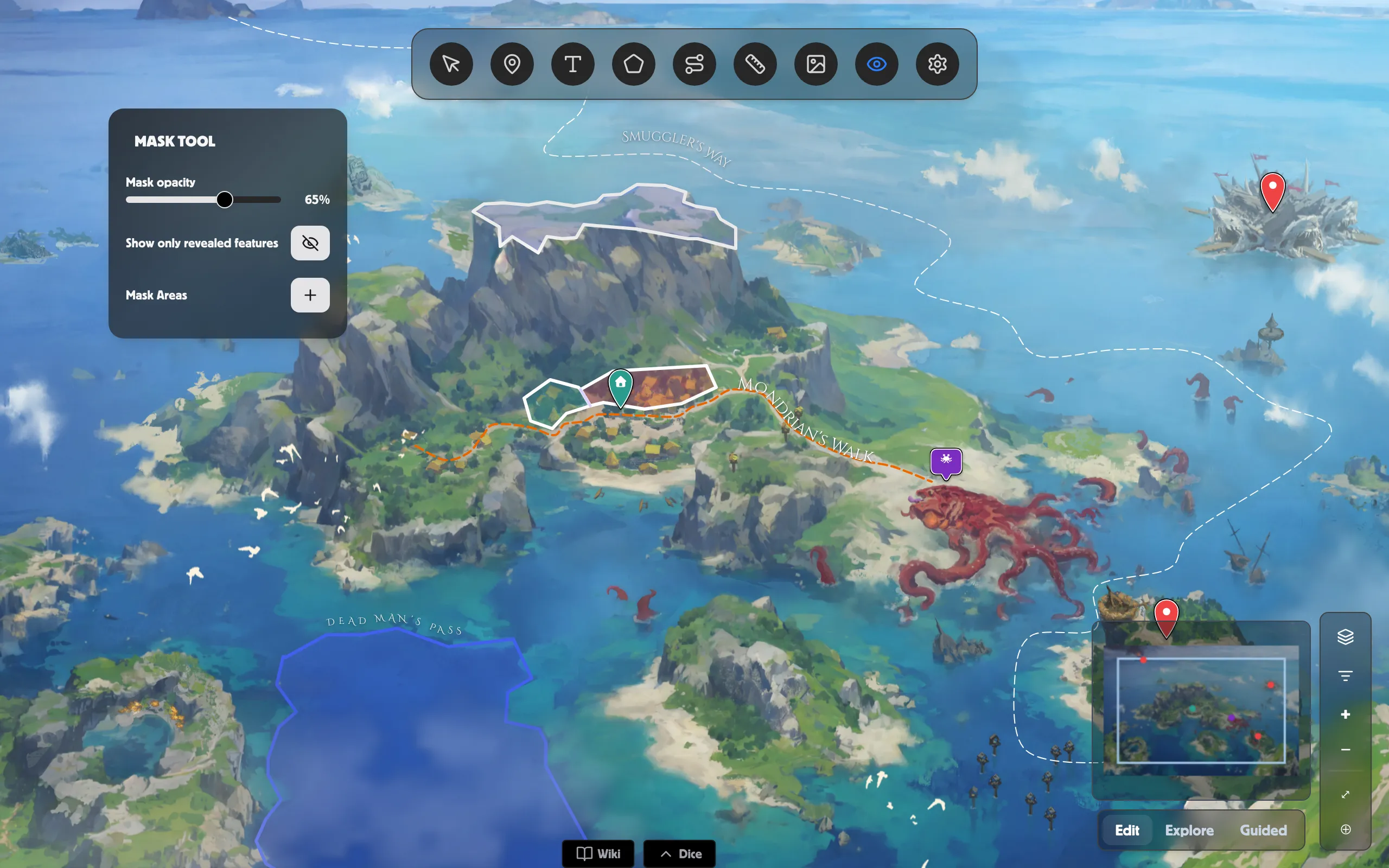
Cover the map
Section titled “Cover the map”-
Open a World Map scene and pick the Mask Tool from the toolbar.
-
Under Mask Areas, click the + button to add an area, then click around the map to drop its corners. Double-click (or right-click) to close the shape.
-
Use the Mask opacity slider to set how solid the cover looks — from a faint haze up to fully opaque.
Reveal an area
Section titled “Reveal an area”Each area in the Mask Areas list has a checkbox. Tick it to reveal that area — it cuts a hole in the cover so the map shows through. Leave it unticked and the area stays covered.
To soften a reveal’s edge, click the pen icon on its row to select it, then use the Feather slider — a higher value fades the hole out gradually instead of a hard line.
Hide markers players shouldn’t see yet
Section titled “Hide markers players shouldn’t see yet”Turn on Show only revealed features (the eye button) and any pins, regions, and other features that fall outside a revealed area are hidden too — so your players don’t spot a marker for a town they haven’t found. Turn it off to see everything again while you prep.
Related
Section titled “Related”- Layers & filters — control what the table sees.
- Pins — the markers a mask can hide until revealed.
- Regions — kingdoms and territories beneath the fog.
- World Map in a Room — reveal the map live at your table.