

Drawing on boards
The board canvas has built-in drawing tools — sketch a quick diagram, circle a group of nodes, draw an arrow between two ideas. Drawings live on the canvas the same way every other node does, so they pan, zoom, group, and undo just like a post-it.
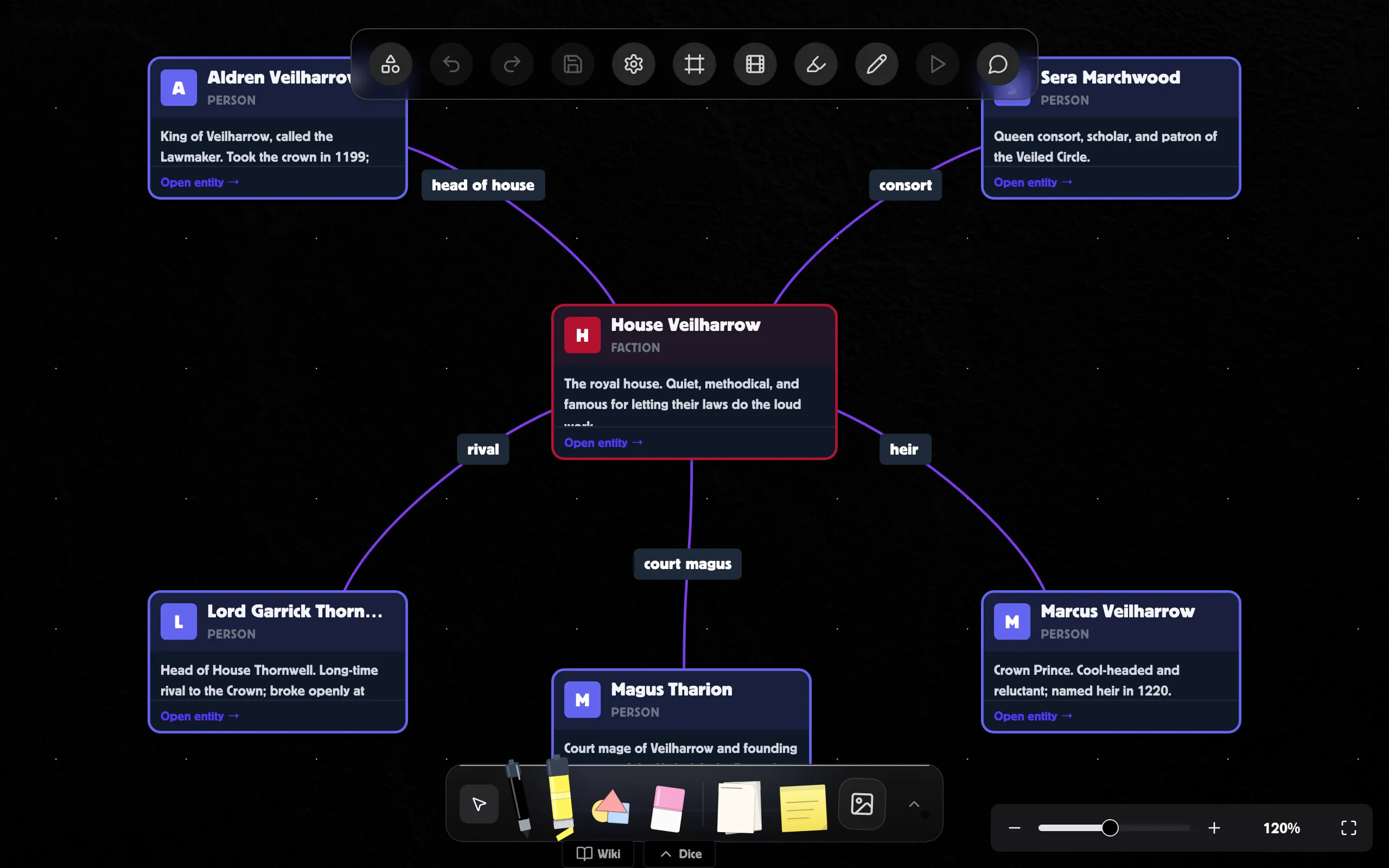
Picking a tool
Section titled “Picking a tool”The drawing toolbar — an artist’s shelf of tools — sits at the bottom of the board and is open by default. You can hide or re-show it with the drawing-tools button in the board toolbar. On the shelf you’ll find:
- Pen — variable-thickness freehand stroke
- Line / Rectangle / Ellipse / Arrow — geometric shapes that share the same hand-drawn style as freehand
- Eraser — point-by-point eraser (more on this below)
- Select — go back to selecting and moving nodes
The shelf also has quick-add tiles for paper, post-its, and images.
Picking a drawing tool turns off the comment tool (and vice versa) so only one input mode is active at a time.
Stroke colour and thickness
Section titled “Stroke colour and thickness”The drawing toolbar exposes a colour picker and a thickness slider. They apply to whatever you draw next. To change the colour or thickness of an already-drawn stroke:
- Switch to the Select tool.
- Click the drawing.
- Adjust the colour and thickness in the right-rail Inspector.
Drawing a smiley face — multi-stroke groups
Section titled “Drawing a smiley face — multi-stroke groups”Most drawings are more than one line. When you finish a stroke and start another one quickly, the new stroke gets added to the same drawing as your last one — eyes, nose, and mouth all end up together as one node.
The toolbar shows a small indicator while this “in-window” timer is active. Wait a moment between strokes if you want them to be separate drawings.
You can also do this manually:
- Group: select two or more drawings, choose Group — they merge into one drawing node.
- Ungroup: select a drawing with multiple strokes, choose Ungroup — each stroke splits out into its own drawing.
The eraser
Section titled “The eraser”The eraser is point-aware — it doesn’t just delete whole strokes.
- Erase the middle of a long stroke and you’ll be left with two halves rather than the whole line being removed.
- Tiny remaining fragments (under 2 points) are dropped automatically.
- If every stroke in a drawing ends up empty, the drawing node deletes itself.
This works the same on freehand strokes and on shapes — you can erase a hole in the middle of a rectangle just like you would on a freehand line.
Resizing a drawing
Section titled “Resizing a drawing”Select a drawing and drag the corner handles to resize it — the strokes scale with the box (aspect ratio is kept, so nothing gets squashed), and the line thickness scales too.
Editing one stroke at a time
Section titled “Editing one stroke at a time”A drawing made of several strokes is normally one object. To change just one stroke, select the drawing and click Edit individual strokes in the Inspector, then click a stroke on the canvas. The selected stroke can be recoloured, made thicker or thinner, or deleted on its own — the others aren’t touched. Click Done editing strokes when you’re finished.
(Prefer them as fully separate objects? Split into N drawings turns every stroke into its own drawing node you can move independently.)
Replaying how it was drawn
Section titled “Replaying how it was drawn”For a multi-stroke drawing, the Inspector has a Replay build control: press play to watch the strokes appear in the order you drew them, or drag the slider to scrub through by hand. It’s a presentation touch — it doesn’t change the drawing.
Working with frames and groups
Section titled “Working with frames and groups”Drawings respect frames just like any other node. Drop a drawing inside a frame and it follows the frame when you move it.
If you want to send a drawing behind or in front of nearby nodes, select it and use the layer controls in the Inspector.
- Hold Shift while drawing a line to constrain it to horizontal / vertical / 45°.
- Pen + select drag doesn’t work — you have to switch to the Select tool to move things. Drawing tools capture every pointer event over the canvas while they’re active.
- Touch and pen input is supported. With a pressure-sensitive pen or stylus (iPad, Wacom), pressure controls stroke width — press harder for a thicker line. Mouse strokes use a velocity-based taper instead.