

Saved views
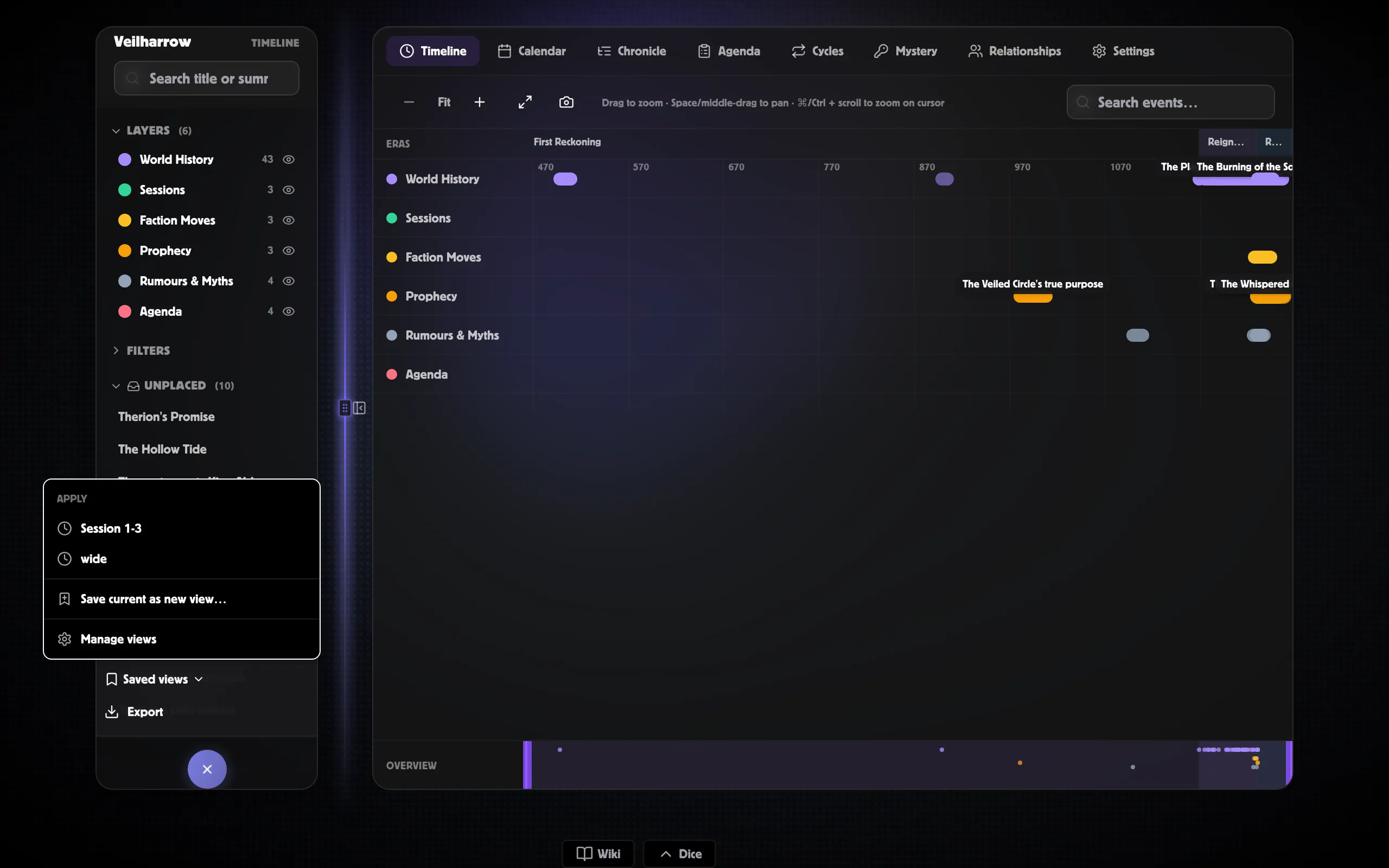
A saved view captures the current state of the timeline workspace and gives it a name. Tomorrow night, when you sit down to run the session, hit your saved view and the workspace snaps back to exactly the right tab, filters, and zoom range.
Saved views are per-user, per-world. They don’t sync to your
players — they’re for you, the GM, organising your own working
surface.
What a view captures
Section titled “What a view captures”When you save a view, PostRoll stores:
- The active tab — Timeline / Calendar / Chronicle / Agenda / Cycles.
- Hidden layers — every layer toggled off in the left rail.
- Precision / certainty filters — every chip you’ve selected.
- Importance threshold — your “show only ≥ N” setting.
- Search query — the text in the search box.
- Timeline zoom + position — when you save from the Timeline tab, the zoom range and viewport position are persisted too.
It does not capture:
- The currently-selected event (selection is transient).
- The Calendar tab’s year / month / day position (lifting that to the saved view is a future polish item).
- Anything from the Mystery / Relationships / Settings tabs.
How to save a view
Section titled “How to save a view”-
Set up the workspace the way you want it — pick a tab, hide layers, set filters, zoom into a region.
-
Click the Bookmark dropdown in the workspace header (between the tabs and the Export menu). Choose Save current as new view….
-
Name it something descriptive — “Tonight’s session — relevant threads”, “Crown of Stone era only”, “Player-safe Veilharrow chronicle”.
-
Click Save view. The view appears in the dropdown’s list and becomes the active view (its name shows on the dropdown trigger).
Applying a view
Section titled “Applying a view”Click the Bookmark dropdown and pick a view from the list. The workspace snaps to the saved tab + filters + zoom in one frame.
The active view’s name shows on the dropdown trigger. If you change filters / zoom / tab after applying, an amber dot appears on the trigger to flag that the current state has drifted from the saved snapshot.
Updating a view
Section titled “Updating a view”If you want the new state to overwrite the saved one:
- Open the Bookmark dropdown
- Click Update “<name>” with current
The dot clears and the saved snapshot is now what you’ve got on screen.
Setting a default
Section titled “Setting a default”In Settings → Saved views, click the ⭐ icon next to a view to mark it as your default. The default applies automatically the next time you open this world’s timeline — useful for landing on your “working agenda” view without two clicks.
Only one view can be default at a time. Click the star again to clear it.
Renaming and deleting
Section titled “Renaming and deleting”Settings → Saved views also has:
- Rename — click the title; type the new name; press Enter.
- Delete — trash icon, with a confirm step.
Deleting a view keeps a hidden copy rather than removing it outright. There’s no “trash” view in the app today, but a deleted view can still be recovered if you need it back.
Common patterns
Section titled “Common patterns”| View name | What it’s for |
|---|---|
| GM agenda — session 12 | Agenda tab, importance ≥ 2, search “session 12 prep” |
| Crown of Stone era only | Calendar tab, hidden layers = everything except Crown, year set to era start |
| Player-safe Veilharrow | Chronicle tab, search empty, no hidden layers (rely on visibility/reveal redaction) |
| What burned | Timeline tab, search “burning”, zoomed to 1230±5 years |
| Tonight’s foreshadows | Timeline tab, certainty=prophecy, importance ≥ 3 |
Related
Section titled “Related”- Keyboard shortcuts
- The Settings tab — saved-views editor surface
- Exports & snapshots — exports run against the active view’s filters