

Creating and editing boards
A board is a canvas for laying things out visually. You can keep boards on their own or attach them to a world so everyone you’ve shared the world with can see them too.
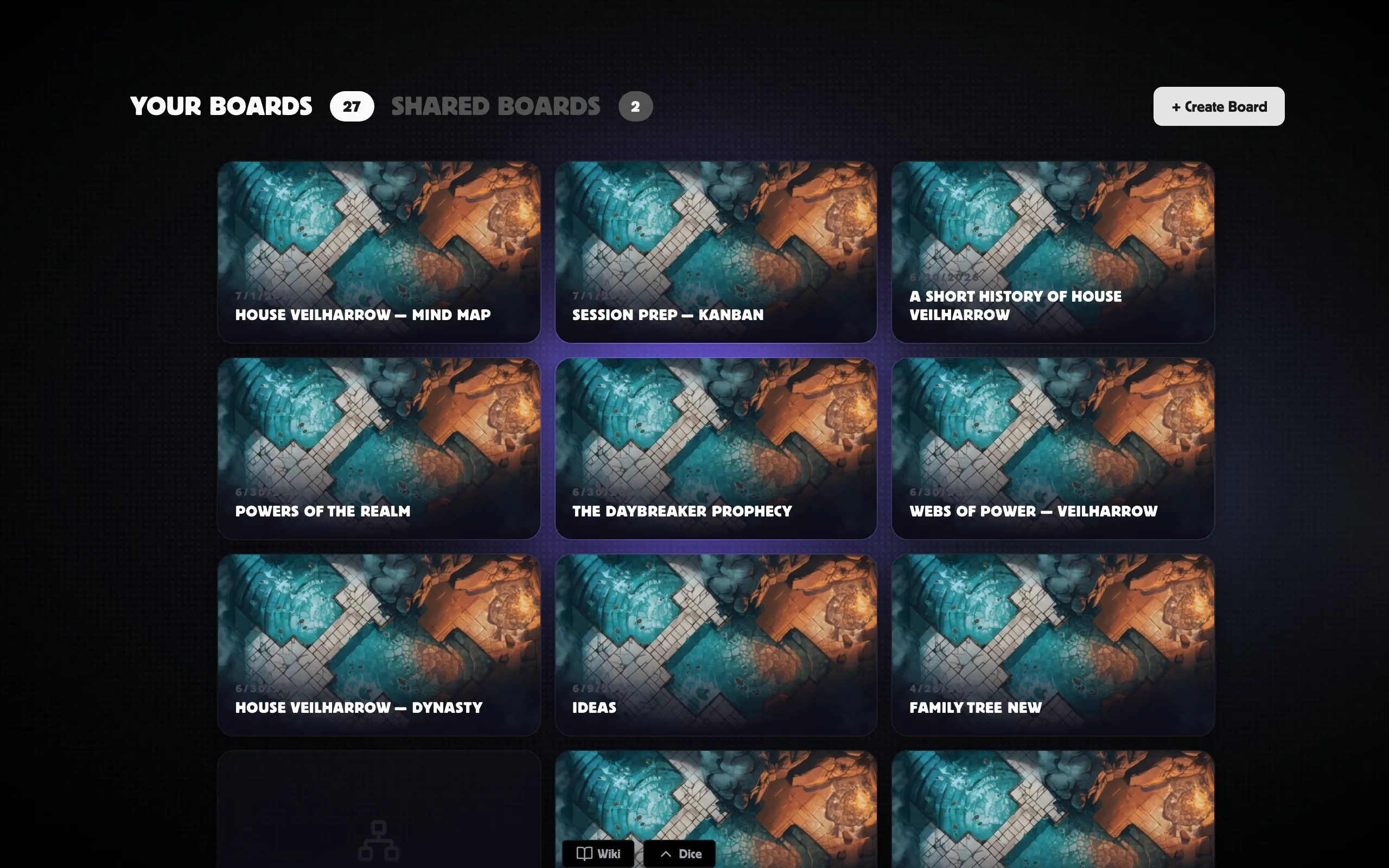
Creating a board
Section titled “Creating a board”- Go to the Boards page and click + Create Board.
- Give it a name and an optional description.
- Choose a board type (see below).
- Optionally upload a cover image and tick Set as default board to make it the one that opens first.
- Click Create.
Board types
Section titled “Board types”The board type tailors the canvas to a job — which tools and node types it leans on, and how auto-layout arranges things. Freeform is the default all-purpose canvas; the rest are pre-shaped for a specific kind of map:
| Type | Best for |
|---|---|
| Freeform | A blank canvas for anything — the default. |
| Family Tree | Genealogies with parents, children, and partners. See Family-tree boards. |
| Relationship Web | Who-knows-who maps that aren’t a strict hierarchy. |
| Faction / Group | Clusters of people grouped into factions. |
| Quest Flow | Steps, prerequisites, and outcomes as a directed flow. |
| Timeline | Events laid out along a time axis. |
| Location Map | Places and the connections between them. |
| Kanban Board | Cards you move through stages — to do, doing, done. |
| Mind Map | A central idea with branches radiating out. |
Attaching a board to a world
Section titled “Attaching a board to a world”Boards can belong to a world so its members share access automatically:
- Create it inside a world — from the world’s wiki, use the create-board action there and the new board belongs to that world.
- Add an existing board — use Add board to world from the world.
Anyone you’ve shared the world with then shows up as an inherited member on the board (see Sharing). Boards created from the Boards page stand on their own, and you share those per-board.
Editing a board
Section titled “Editing a board”Open a board’s card on the Boards page, click Details, and choose Edit to change its Name, Description, Board Type or Cover image, or to tick Set as default board.