

Shared borders
Neighbouring regions can share an exact edge, so there’s never a gap or an overlap between two kingdoms — and, if you want, that edge can move as one so redrawing it hands territory from one side to the other.
Snap edges as you draw
Section titled “Snap edges as you draw”Leave Snap to borders on (the switch in the Region panel, or press S to toggle it) and a new region’s edge snaps onto an existing region’s border as you draw. Points glow purple when they’ll snap.
Click near a neighbour’s border to start following it, then click again further along — the stretch in between traces the neighbour’s exact edge. Hold Alt to drop a free point instead, and press Tab to follow the border the other way around.
Line up two regions you already drew
Section titled “Line up two regions you already drew”Drew them freehand and they don’t quite meet? Select a region, make sure snapping is on, and drag one of its points onto a neighbour’s point — it snaps to the exact same spot (a purple glow confirms). Line up the shared corners this way and the two borders will match.
Share the border: Aligned or Linked
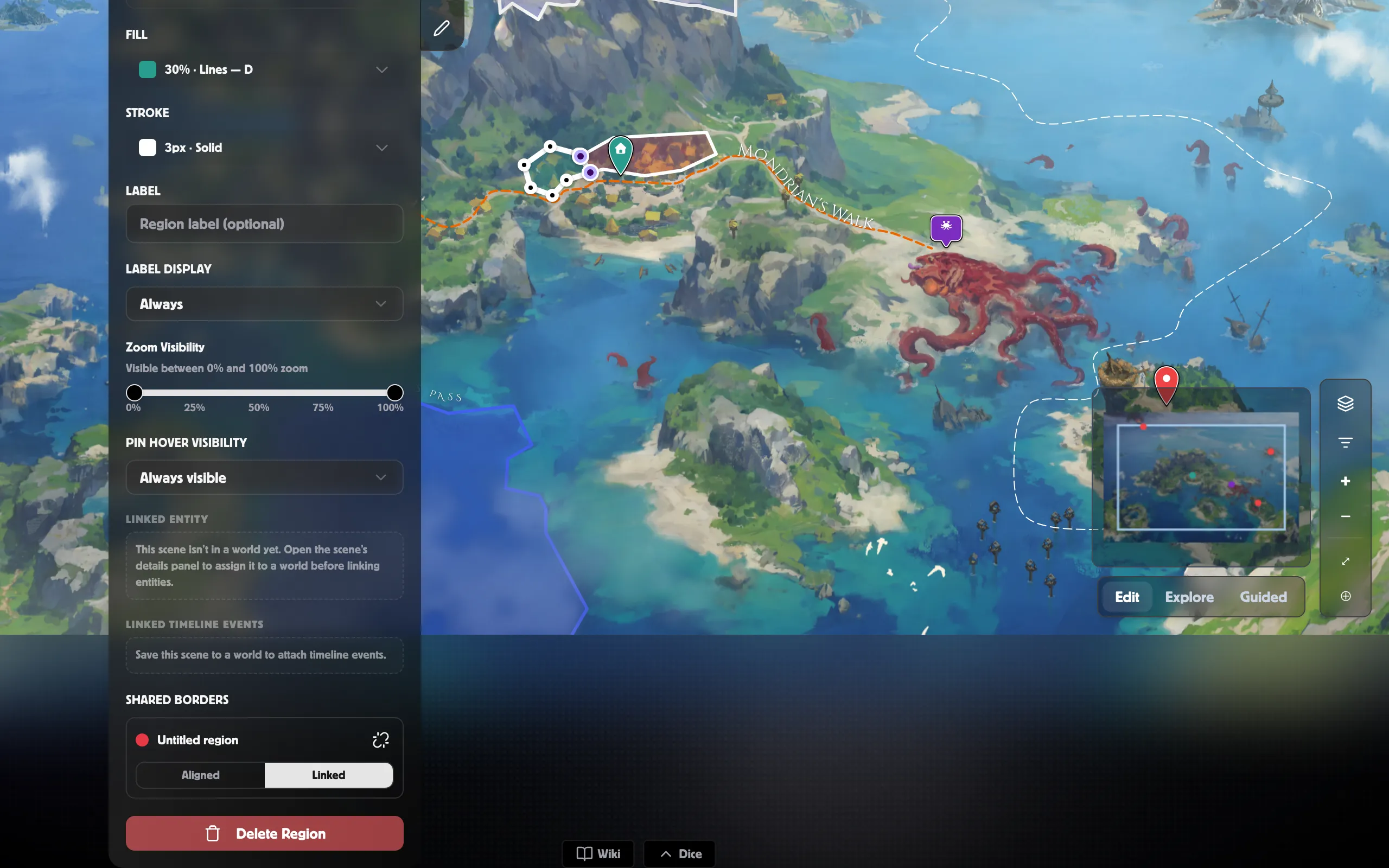
Section titled “Share the border: Aligned or Linked”Once two regions meet along an edge, select one and find Shared borders in the Region panel. Each shared edge lists the neighbour, and offers two modes:
- Aligned — the edge is shared, but each region is still edited on its own. Move that edge on one region and the two simply stop sharing it.
- Linked — the edge moves as one. Drag the purple handles on a linked border and both regions change together: one gains territory exactly as the other loses it. Where three regions meet, dragging the junction moves all of them.
On a linked border, click the line to add a point, or right-click a handle to remove one.
Link, re-align, or separate
Section titled “Link, re-align, or separate”- Link shared border — if two regions touch but aren’t shared yet (including after you separated them), the panel lists the neighbour under Link shared border. Click it to share the edge; close-but-not-exact edges snap together first.
- Re-align — if an aligned edge has drifted apart, a magnet button appears; it snaps the neighbour back onto this region’s edge.
- Separate — the unlink button turns a shared border back into two independent edges. Both regions keep their shapes.
Related
Section titled “Related”- Regions — drawing and styling territories.
- World Map scenes — all the map tools.
- Generate a map with the Map Foundry — auto-draw borders.
- Kingdoms — region borders on a generated map.