

Paper nodes on boards
Paper nodes are rich-text canvas nodes styled as sheets of paper — soft rounded edges, a layered drop shadow, and your choice of ruling: plain, lined, dotted, or squared. Each sheet has a title at the top and a body below, both editable independently.
Use a paper sheet when you want a single, self-contained note that feels more grounded than a sticky and more deliberate than a free-floating text box — meeting notes, a character backstory, a session journal entry, a quote you want to keep visible.
Adding a paper sheet
Section titled “Adding a paper sheet”- Open the Component Library drawer from the toolbar.
- Find the Paper card and drag it onto the canvas.
- Drop it where you want the sheet to land.
A new sheet starts on ivory with lined ruling at 360×440. You can change everything from the inspector.
Editing the title and body
Section titled “Editing the title and body”The title and body are two separate editors so each one stays its own shape — you can reformat the title without disturbing the body, and undo edits to one without touching the other.
- Double-click the title at the top to edit it.
- Double-click the body below to start writing.
- Click anywhere outside the sheet (or press Escape) to leave edit mode.
While you’re editing, the floating toolbar drives whichever editor has focus, so bold / italic / colour / size all work the same as on a text box or post-it.
Choosing a paper style
Section titled “Choosing a paper style”Open the right-rail Inspector with a paper sheet selected. The Paper Style picker shows four miniatures of the actual ruling — pick one and the sheet redraws live:
- Plain — a clean unruled sheet for quotes or longer passages.
- Lined — horizontal rules every 28 px, the default. Great for prose.
- Dotted — a soft dot grid; works well for bullet-style notes.
- Squared — a graph-paper grid for diagrams, math, or layouts.
Paper colour
Section titled “Paper colour”Below the style picker is a row of nine curated paper colours: white, ivory, cream, parchment, manila, kraft, blue grid, mint, and blush. These are tuned to feel like real paper stock — a manila folder, kraft butcher paper, an old letter on parchment.
If you need an exact colour, use the Custom Colour picker underneath to pick anything you like.
Other things you can do
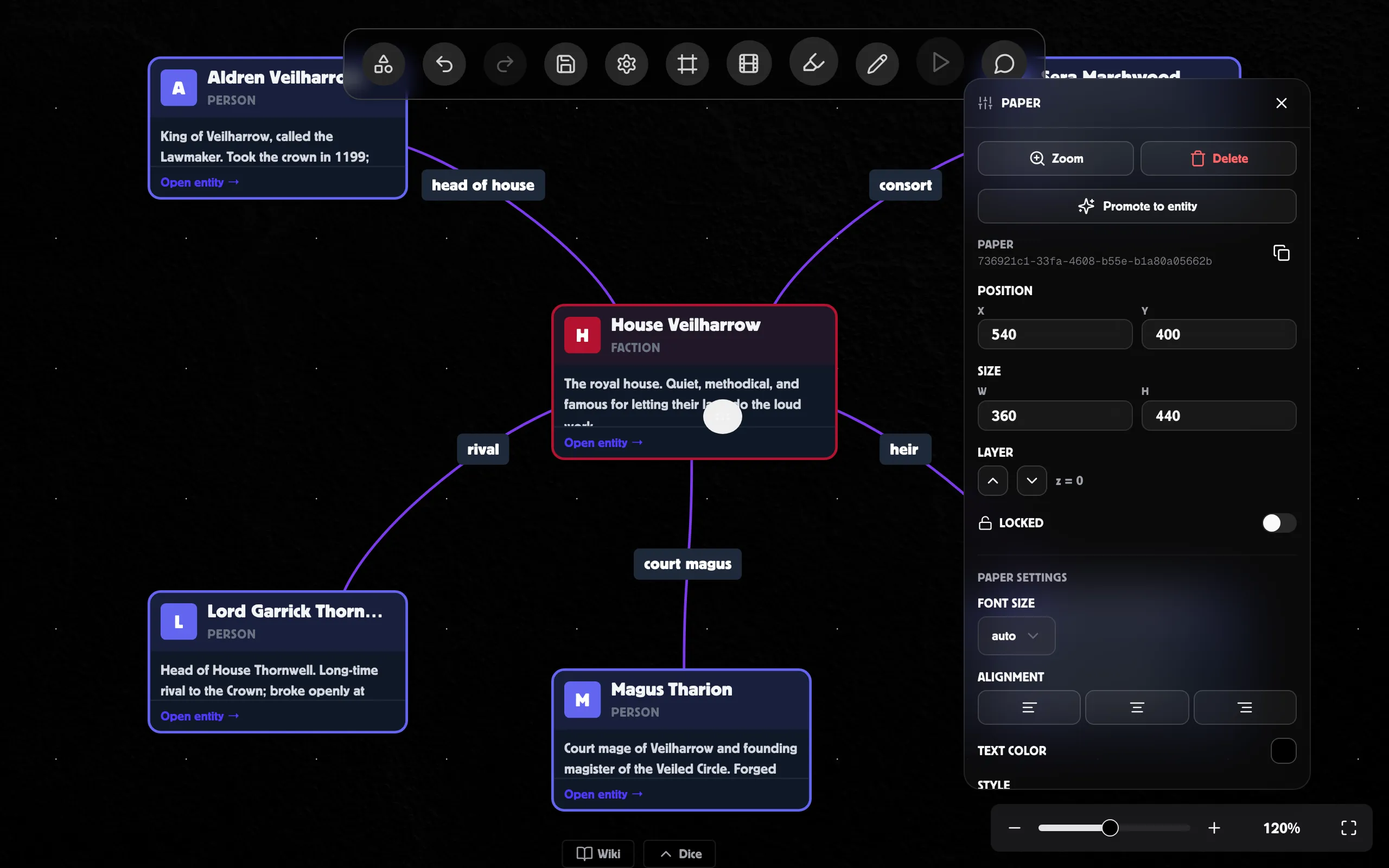
Section titled “Other things you can do”- Resize — drag any corner. Width and height are saved with the sheet.
- Lock — toggle the lock in the Common section of the inspector so double-clicks no longer enter edit mode and the sheet can’t be dragged away by accident.
- Connect — paper sheets have the same eight connection handles as text boxes, so you can run an edge from a sheet to anything else on the board.
- Group with frames — drop a paper sheet inside a frame and it follows the frame around the canvas like any other child node.
- Move several at once — paper sheets, post-its, and text boxes can be selected together and dragged to another board via the multi-node drag handle.
- The lined and squared rulings line up with the body text by design — if you change the body font size dramatically, text may drift off the rules. Stick close to the default 16 px for the most paper-like feel.
- Pattern and colour changes are pure styling — they don’t affect the text content you’ve written, so you can swap between rulings as much as you like.
- The title masthead always stays unruled even on lined or squared paper, so titles stay legible regardless of the body style.