

Creating & editing entities
There are two ways into an entity: create one from scratch in the world’s entity list, or promote something you already have — a wiki page, an actor, a scene, a board, or a world-map shape — into an entity in one step.
Create from the entities list
Section titled “Create from the entities list”-
Open Worlds → <your world> → Entities.
-
Click + New entity in the header.
-
Pick a type from the dropdown (Person, Place, Faction, …) and fill in the canonical name.
-
Leave Also create a wiki page ticked unless you have a reason not to — see below.
-
Click Create entity.
The new entity opens on its detail page. If you left the page option ticked it opens straight on the Page tab, ready to write.
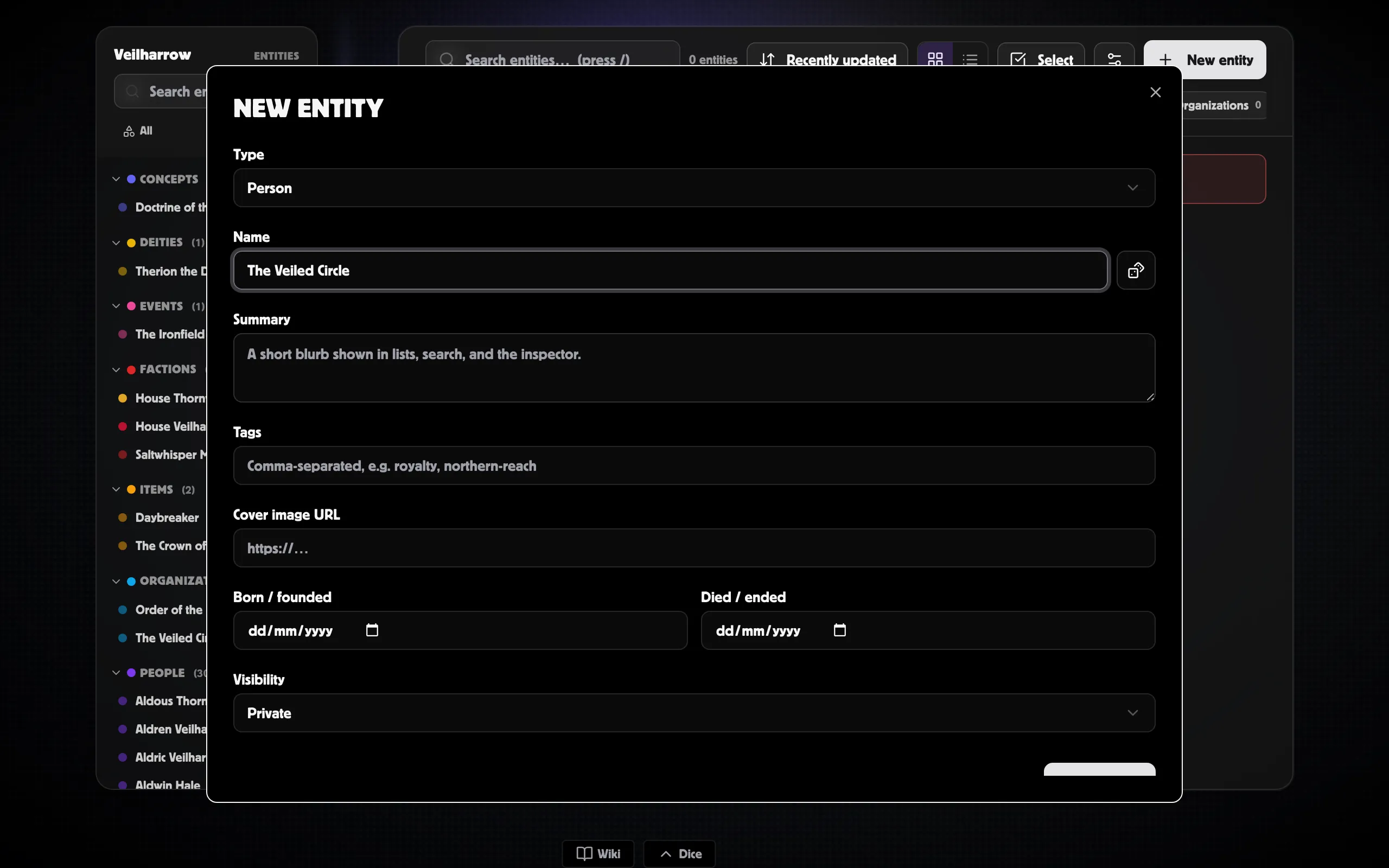
Also create a wiki page
Section titled “Also create a wiki page”Ticked by default. An entity on its own is a record — a name, a summary, some dates — with nowhere to actually write. Ticking this gives it a wiki page at the same moment, already linked, so you land somewhere you can start typing instead of looking at a form you just filled in.
The page starts from the skeleton for that type: create a Place and you get a Place page with the headings a Place page has here, and its details already pulled in. See Page templates.
Writing about an entity
Section titled “Writing about an entity”The Page tab on an entity is the wiki page bound to it, in full — the same editor, the same autosave, the same everything. It is there so a person has one place to be rather than two: the record and the writing on one screen.
An entity with no page yet shows an empty state on that tab instead.
Promote an existing object
Section titled “Promote an existing object”Most surfaces have an Entity card in the right rail. If the page or node isn’t bound to one yet, the card shows a Promote to entity button — clicking it creates a new entity AND links the current object to it in a single action.
See Linking objects to entities for the full picture, including how to link to an entity that already exists.
What’s on the Details tab
Section titled “What’s on the Details tab”Every entity opens on a four-tab page (Details · Connections · Relationships · Timeline). The Details tab is where the canonical content lives:
- Name — the entity’s display name. Used everywhere it’s referenced.
- Summary — a one-paragraph description. Shown in lists, hover previews, and the public page.
- Tags — free-form chips you can filter the entity list by.
- Cover image, icon, colour — surface decoration. The icon and colour come from the entity’s type by default; override per entity if you want one to stand out.
- Lifespan — a Born and Died date pair. Used by Person, Event, Organization, and Deity entities to anchor lifespans, founding / dissolution years, etc. Leave both blank for entities where it doesn’t apply.
- Type-specific fields — extra fields defined by the entity’s type. Built-in types are minimal; custom types can add as many as you like. See Entity & relationship types.
- Visibility — a quick selector for who can see the entity. The full controls live in the Share dialog; see Sharing & exporting.
- Aliases — alternate names that drive search and mentions; managed in their own section on the Details tab. See Aliases & search.
Edits save on Save in the header. Unsaved changes are flagged so you won’t accidentally navigate away.
Archiving and deleting
Section titled “Archiving and deleting”The header has both Archive and Delete:
- Archive hides the entity from the default list (a “Show archived” toggle brings it back) and excludes it from search. The entity, its bindings, relationships, and timeline are all preserved — flip Unarchive to restore.
- Delete removes the entity from every surface, but a copy is kept behind the scenes so it can be recovered. There is no in-app undelete yet.