

Frames on boards
Frames are containers on the board canvas — but they’re also slides. Use them to group related nodes, jump between them with one click, and present through them in fullscreen like a deck. Perfect for scene-by-scene adventure planning, GM session prep, or running a board live at the table.
Drawing a frame
Section titled “Drawing a frame”- Click the Frame Tool icon in the toolbar.
- Drag a rectangle on the canvas around the area you want to frame.
- The new frame is created. Anything inside it (including stuff that was already there before you drew) automatically becomes a child of the frame — meaning it’ll move with the frame from now on.
You can resize a frame by selecting it and dragging the handles, and rename it by clicking the label at the top.
The Frames panel
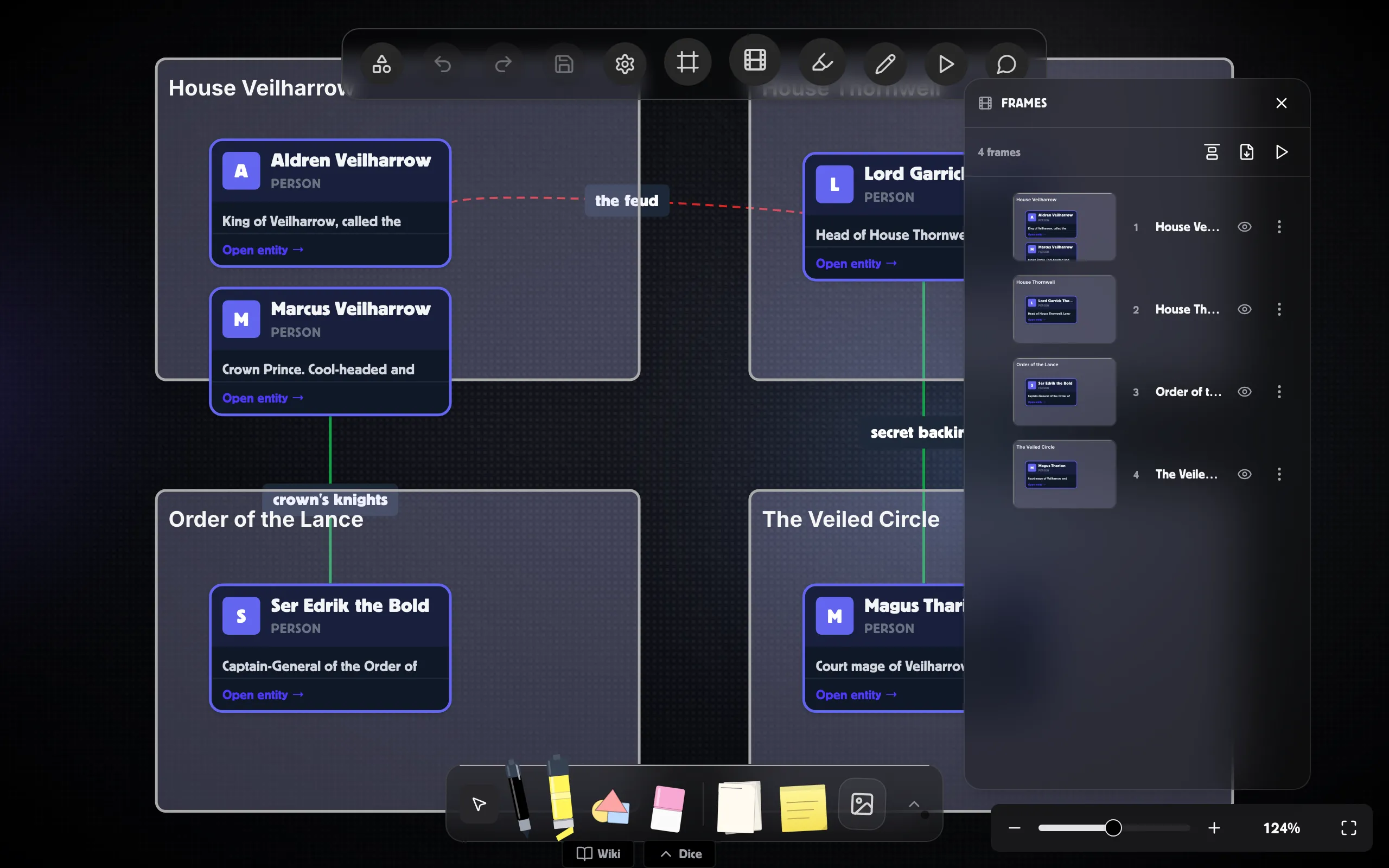
Section titled “The Frames panel”The Frames panel is the right-rail sidebar that lists every frame on the board with a live thumbnail. Open it from the Frames button in the toolbar.
Each row shows:
- A live thumbnail of the frame’s contents — updates as you edit.
- The frame’s slide number in the order.
- The frame’s title.
- An eye toggle to hide the frame from presentation.
- A ⋯ menu (or right-click anywhere on the row) for more actions.
Reorder
Section titled “Reorder”Hover any row to reveal a drag handle on the left. Drag rows up and down to change the slideshow order. The arrangement saves with the board.
To reset the order from scratch, click the small align icon in the panel header — it rebuilds the order based on the frames’ positions on the canvas (top-to-bottom, then left-to-right).
Click to focus
Section titled “Click to focus”Click any row (anywhere except the buttons) and the canvas pans and zooms to fill its viewport with that frame. Great for jumping around long boards without manual scrolling.
Rename a frame
Section titled “Rename a frame”Double-click a row’s title to rename inline. Enter to commit, Esc to cancel. Or use Rename from the row menu — same result.
Hide a frame from presentation
Section titled “Hide a frame from presentation”Click the eye icon on a row (or pick Hide from presentation in the menu). Hidden frames stay on the canvas but are skipped during the slideshow. Click again to bring them back.
The row menu
Section titled “The row menu”Click the ⋯ kebab at the right edge of a row, or right-click anywhere on the row, to open the menu:
- Rename — same as double-clicking the title.
- Hide / Show in presentation — toggle the slideshow flag.
- Add frame below — drops a new empty frame just to the right of this one on the canvas, and slots it directly after this one in the order.
- Move up / Move down — single-step reorder.
- Copy link — copies a URL that opens this board with this exact frame focused. Handy for sharing.
- Export as PNG — downloads a high-resolution image of the frame.
- Delete frame — removes the frame from the canvas and the order. Children parented to the frame become top-level nodes.
Every action is undoable with Cmd/Ctrl+Z.
Presentation mode
Section titled “Presentation mode”Use the Present button in the toolbar (or in the Frames panel header,
or the keyboard shortcut Cmd/Ctrl+Shift+P) to enter fullscreen
slideshow mode.
While presenting:
→/ Space / PageDown — next frame.←/ PageUp — previous frame.- Home — jump to the first frame.
- End — jump to the last frame.
- Esc — exit presentation. The canvas restores to wherever you were.
The bottom-of-screen chrome shows the slide counter (3 / 8), the active
frame’s title, and prev/next/exit buttons. Hidden frames are skipped — the
counter only counts visible ones.
What you can move with a frame
Section titled “What you can move with a frame”Anything parented to the frame moves with it:
- Drag the frame and every child node moves by the same amount — postits, cards, drawings, and any nodes you drew the frame around when you created it.
- Drag a node out of a frame and it stops being a child. Drag a node into a different frame and it re-parents (the destination frame highlights green to confirm).
To remove a frame without deleting its children, select it and press
Cmd/Ctrl+Shift+G (Ungroup). The frame goes away and its children pop
back to the top level.
Sharing a deep-link to a frame
Section titled “Sharing a deep-link to a frame”Pick Copy link from any row’s menu. The URL has a ?frame=...
parameter — opening it in a new tab loads the board, opens the Frames
panel, and pans to that exact frame. Paste it into a chat message, a
comment, or session notes and your players land exactly where you want
them.
Reader vs Editor
Section titled “Reader vs Editor”- Editors can do everything: draw frames, reorder, rename, hide, delete, present.
- Readers can open the panel, click rows to focus, and present — presentation is just a viewing mode and never writes anything. Reorder / rename / hide are disabled.