

Scenes & battle maps
A scene is a location you’ve prepared to bring to the table — a dungeon battle map, an overland world map, or a dramatic backdrop. Everything you set up on a scene (its map image, grid, tokens, walls, lights, and fog) is saved with it, so you can prep once and run it whenever your party gets there.
Your scenes library
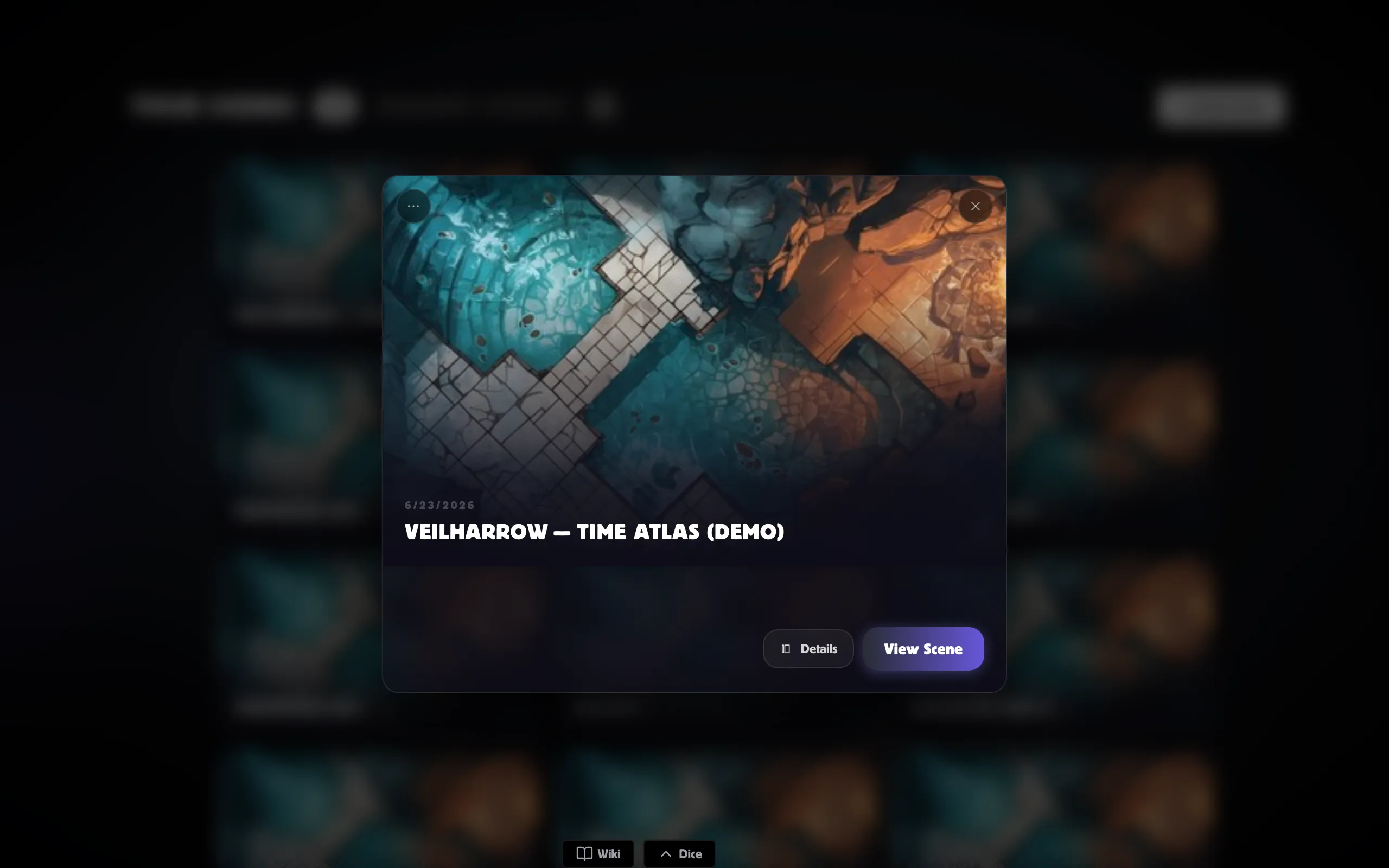
Section titled “Your scenes library”Open Scenes from the sidebar to see every scene you own, plus a Shared Scenes tab for scenes other GMs have shared with you. Click a card to expand it — View Scene opens the scene, and Details is where you edit, duplicate, share, or delete it. If a scene is currently running in one of your rooms, its card shows a Live in: badge naming the room.
Scene types
Section titled “Scene types”When you create a scene you pick one of three types:
- Battle Map — a top-down tactical map: a square or hex grid, tokens, walls, lights, and fog of war.
- World Map — an overland map with pins, paths, and regions instead of a tactical grid. Great for travel and campaign geography. See World Map scenes.
- Atmosphere — backdrop art for moments that don’t need tactics: a throne room audience, a storm at sea.
From prep to play
Section titled “From prep to play”- Create the scene — upload your own map or generate one with the Map Foundry. See Creating a scene.
- Prepare it — open the scene from the library and set up the grid, walls, lighting, fog of war, and starting tokens, all before anyone else sees it.
- Bring it to your room — in your room’s play view, the GM picks the active scene. Everyone at the table sees the scene you switch to. See Your room hub.
- Run it live — during the session, the full Virtual Tabletop takes over: token vision, targeting, dice, combat, and more.
This section covers the first two steps — the library and prep. Everything that happens during play lives in the Virtual Tabletop section.
Related
Section titled “Related”- Creating a scene — upload a map and set up the grid.
- Generate a map with the Map Foundry — no map? Make one.
- Virtual Tabletop — running scenes in a live session.
- Your room hub — where your table gathers to play.