

Sharing & exporting
Entities inherit their world’s sharing by default — everyone with access to the world can see them. The Share button on the entity detail header opens finer-grained controls: visibility levels, direct collaborators, public links for outside readers, and a JSON export of the entity’s full content.
Visibility levels
Section titled “Visibility levels”The Visibility selector at the top of the dialog has five levels:
| Level | Who can see it |
|---|---|
| Private | Only you. |
| Shared | Only the specific people you invite under Manage collaborators. |
| World | Anyone with access to the world (default for collab campaigns). |
| Unlisted | Anyone with the link. Search engines aren’t asked to index it. |
| Public | Anyone with the link. Indexable on the web. |
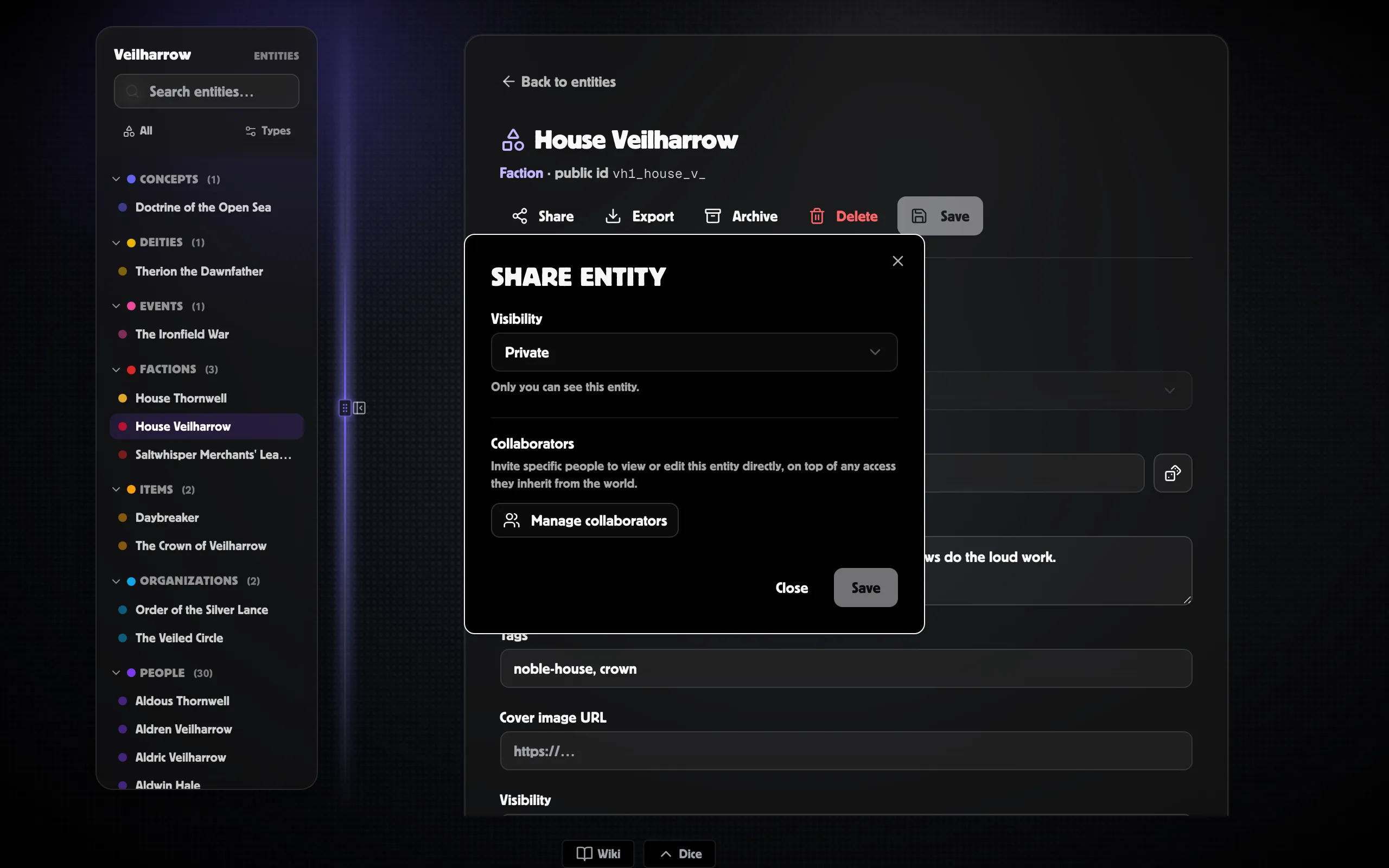
Switching to Public or Unlisted reveals a copy-link box with the entity’s public URL — see below.
Public entity page
Section titled “Public entity page”Public and unlisted entities each get a clean read-only page at
/entity/<publicId> (note: outside /app/, no login required).
It shows:
- Cover image, name, type chip, lifespan.
- Tags.
- Summary.
- Type-specific fields the world owner has filled in.
- Timeline events.
Aliases and the entity’s internal connections are not shown — the public page is the canonical, share-friendly view.
The URL stays stable even if you rename or re-slug the entity, so it’s safe to share once and forget.
Sharing one to the feed
Section titled “Sharing one to the feed”An entity can be posted to the feed like any other creation: Create a card → Share a creation, then pick it. The card carries its cover, name and summary, and anyone who can see the post can open it.
This is separate from the visibility setting above. Posting doesn’t make an entity public — it makes that post readable. If you want a link anyone can open outside the app, set the entity to public or unlisted and use its own page.
Inviting direct collaborators
Section titled “Inviting direct collaborators”Direct shares give specific people viewer or editor access on top of whatever the world grants them.
-
Click Share in the entity detail header.
-
Click Manage collaborators.
-
In the Invite tab, enter an email address or pick a username. Choose a role (Viewer or Editor).
-
Click Send invite. They receive a link they can redeem.
-
Manage existing shares from the Access tab — change roles or remove people there.
Direct shares are useful when one player should be able to edit a specific NPC’s notes without giving them edit access to the whole world.
Exporting
Section titled “Exporting”The Export button next to Share in the header downloads a
single .entity.json file containing the entity’s:
- Canonical row (name, summary, type, fields, lifespan, etc.).
- Aliases.
- Bindings (which wiki pages, actors, scenes, boards, shapes link to it).
- Relationships (canonical direction).
- Timeline events.
Use it for backups, archival, or hand-porting an entity to another PostRoll instance.
Public/unlisted entities can be exported by anyone with the link. Private entities require world access to export.