

Buildings and rooms on a battle map
On a battle map you can draw a building to any outline, then draw the rooms inside it and choose where its doors go. This works in the battle map creator, and in the editor of a village you cut battle maps from.
Buildings of any shape
Section titled “Buildings of any shape”A building can be any shape: an L, a T, a U, a wedge, a round tower, a ring of rooms round a courtyard.
-
Click Walls (or press W), then Building.
-
Choose what it is under Building: a cottage, a house, an inn, a smithy, a chapel, a barn and more.
-
Draw its outline: pick a Shape (a rectangle, a circle, a hexagon, an L and more) and drag it out, or pick Freehand and click each corner, clicking the first one again to close it. With Pen on, drag at a corner to curve its walls.
On a battle map, the corners snap to the 5-ft grid so its walls run along the squares. Turn off Snap to the 5-ft grid to place them anywhere.
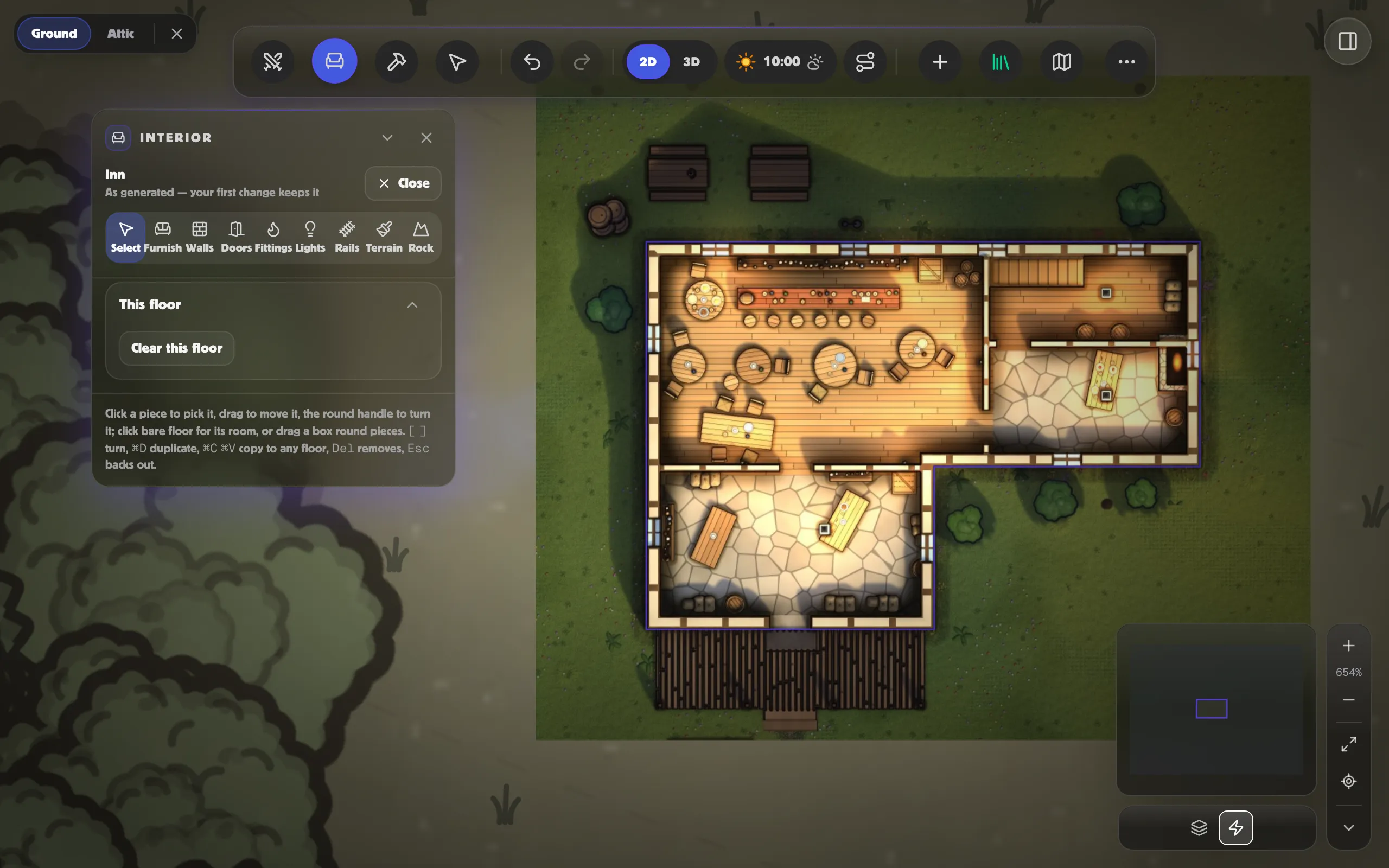
Each wing gets a roof of its own. On the battle map, the walls and rooms follow the outline, with doors between the rooms. Select it to move, turn or resize it like any other building.
With the roofs off, a building on a battle map shows its rooms. You can draw them yourself.
-
Take the building’s roof off with its round button.
-
Click Walls (or press W), then Stone wall. Inside the building, a wall you draw is one of its walls.
-
Drag from one wall to the other, or click corner after corner and double-click the last (or press Enter). With Pen on, a wall can curve; with a Shape picked, drag out a round or a six-sided chamber.
-
To set a door in a wall, click Doors & windows, then click on the wall.
An inner wall with no door gets one in its middle, unless you’ve set doors yourself somewhere in that building. Furniture is arranged room by room, and nothing stands across a wall.
A Door stamp (Place, then the Battle map shelf) on a building’s outside wall moves its front door there. A building has one front door, so the last Door you set on its outside walls is the one it uses.
When you Download with the roofs off, the inner walls and their doors go into the file with the rest of the walls.
To furnish the rooms piece by piece, change their walls, doors and stairs, or dig a cellar, see Furnishing a building’s rooms. For every way to draw, see Walls, lines, areas and the brush.